Prefabs and Placeholders
After installing the Creator Kit correctly, in your Unity Project you will find a new Package called "Reflectis-CreatorKit-Worlds-Placeholders".
Prefabs
The Package contains various asset prefabs with built-in logic, ready to be taken and dragged into your scene, for immediate use:
- Big Screen - Panel that allows to display a multimedia content shared with everyone.
- Chatbot - Asset that allows to chat an AI agent in the scene.
- Dashboard - Object that allows you to show the list of Experiences available in the World.
- Interactable - Prefab that a Creator can use as a wrapper for interactions logics on a custom 3D asset.
- Particles - List of visual prefabs to be used in your scenes. Explore them directly in Unity!
- Point of Interest - Object that allows you to present information with images, videos, links and texts by clicking on a button in the environment.
- Quiz Panel - Customizable panel used to create quizes that appear in the environment.
- Scene Changer - Object that allows you to switch from one scene to another
- Teleporter - Object that allows teleportation from one point to another, or from one scene to another
- Tutorial - Contains a set of prefab utilities related to the standard Welcome and Tutorial Panels.
- UI: Folder that contains a lot of prefabs to create custom UIs based on Reflectis styles.
- Voice Chat - Object that allows you to create a private area where voice chat is active.
- [Deprecated] Map camera - Camera that allows you to view the map of the environment from above.
- [Deprecated] Mirror - Mirror that allows you to open the avatar customization window.
- [Deprecated] SpawnPoint - Instead of using this Prefab, still here for retrocompatibility, refer to the one cited in Scene Setup.
You can also download the Reflectis-CreatorKit-Worlds-Tasks package in your project to be able to use the following prefab
- TaskPanel - Panel shows the flow of tasks created with the Task system. Tasks are events that can be used to give a complex flow to the interactions in the environment.
Script Placeholders
Apart from the prefabs, you can also find individual scripts, each representing a different general utility. These scripts are called script placeholders, since the logic doesn't work until the scene is uploaded to the platform. These scripts can be attached to a GameObject of your choice to give it a specific behaviour. To ensure the proper functioning of individual scripts, they must be accompanied by the correct components inside the object’s Inspector.
Components are the functional elements of every GameObject. These components contain properties that you can edit to define the behavior of a GameObject.
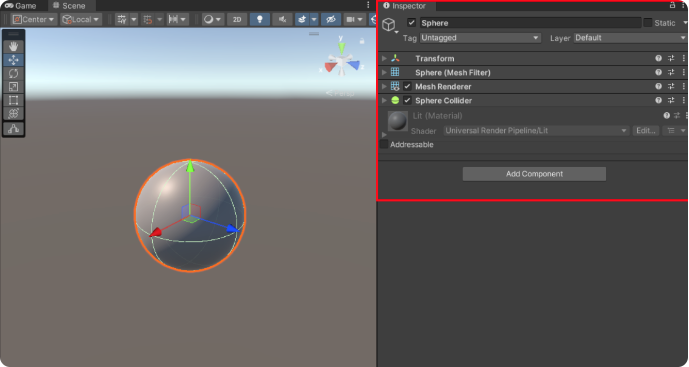
Here is the list of the aforementioned utilities:
- Deactivate Objects Placeholder - Controls which GameObjects should be deactivated in specific destination platforms.
- Disable Behaviour Placeholder - Controls which MonoBehaviours should be disabled in specific destination platforms.
- Disable Collider Placeholder - Controls which colliders should be disabled in specific destination platforms.
- Localization Placeholder - Assigns a localization key to a TextMesh Pro UGUI element.
- Localize Task Placeholder - Assigns a localization key to a Task of the Task System.
- Remove Help Placeholder - Removes the "Help" button from the main UI.
- Remove Tablet Placeholder - Removes the "Tablet" button from the main UI.
How to use the placeholders: assign a behavior to an object
The steps to attach a behavior to an object are as follows:
-
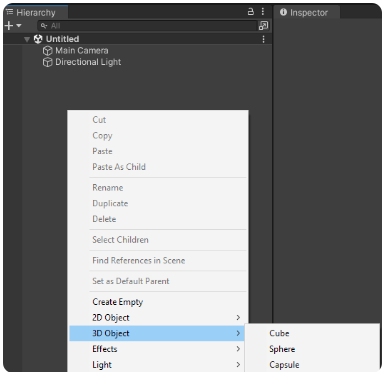
If you need a GameObject to work on, drag an existing asset or right click on Unity's hierarchy to create a new one.
-
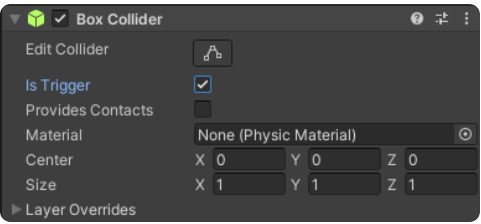
Through the object's inspector, add a Box Collider, with the "Is Trigger" checkbox selected to enable interaction with the user.
-
Drag and drop the desired script placeholder from the Reflectis CreatorKit folder.
Alternatively, you can select "Add component" in the inspector and type the name of the script you want to associateWarningPlease note that it's not recommended to attach two different script placeholders into the same object. Distributing the scripts between parent and children to obtain more behaviors for the same object is allowed, but requires testing and a good handling of the different components.

-
Edit the public parameters of the script according to your preferences, be careful to reference the correct components in the correct slots:

-
Add the other components needed to initiate the desired behavior of the object (empty objects, colliders, audio sources, or others depending on the chosen script). These depend on how the selected script placeholders work.