Networking Nodes
These nodes allow to interact with the networking and multiplayer systems, including object synchronization.
Get Nodes
Get current network time Node
🔍
Reflectis>Get>Reflectis Networking: Get current network time
This Node retrieves the current network time synchronized across all clients.
- ⬆️ Output:
- NetworkedTime (
double), the current network time as a double value.
- NetworkedTime (
Get Current Shard Open State Node
🔍
Reflectis>Get>Reflectis Networking: Get Current Shard Open State
This Node retrieves whether the current shard is open for new players to join.
- ⬆️ Output:
- Is Open (
bool), a boolean indicating whether the shard is open.
- Is Open (
Get Local Player ID Node
🔍
Reflectis>Get>Reflectis Networking: Get Local Player ID
This Node retrieves the session ID of the local player.
- ⬆️ Output:
- PlayerId (
string), the session identifier of the local player.
- PlayerId (
Flow Nodes
Set Current Shard Open State Node
🔍
Reflectis>Flow>Reflectis Networking: Set Current Shard Open State
This Node sets whether the current shard is open or closed for new players.
- ⬇️ Input:
- Open (
bool), a boolean that determines whether the shard should be open (true) or closed (false) (default:false).
- Open (
IsMaster Node
🔍
Reflectis>Flow>Reflectis Network: IsMaster
This Node acts as a switch that differentiates execution based on whether the local player is the master client or not.
The control output flows are:
- True, executed if the local player is the master client
- False, executed if the local player is not the master client.
Object Synchronization
To synchronize variables in multiplayer, we need to proceed with these steps in the graph editor:
-
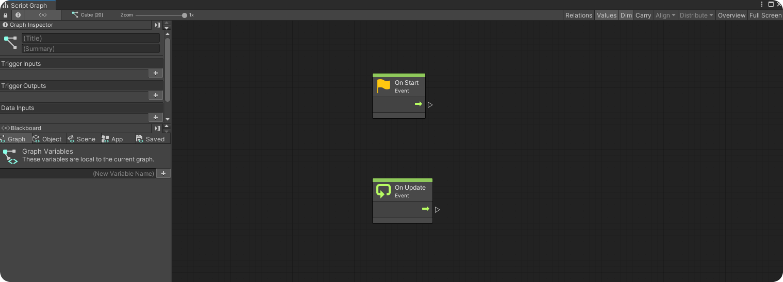
Click "Edit Graph" on the "Script Machine" component to open the Graph editor and start editing the nodes on the graph to obtain the desired behavior
-
When embedded to the object and placed on the scene, the visual scripted behavior will start as "Not Networked"
-
To be able to network the variable of the object to all the users, the Synced Object is needed. Without it the interactions made with the graph editor will be visible only to the client and not the rest of the server.
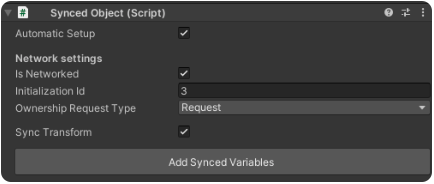
It's important that the parameters "Automatic Setup" and "Is Networked" are ticked, and a new ID must be assigned each time it's assigned to a different object (please refer to section Initialization ID).
The "Ownership Request Type" parameter determines what type of request will be made on that object:
- "Request" - where you request ownership of the object
- "Takeover" - where you take ownership regardless, automatically.
- "Fixed" - where the ownership is predetermined and cannot be changed.
Moreover, you have to tick the "Sync Transform" parameter, if it's necessary for the position, rotation and scale information of the object, to which the script is attached, to be shared with the server and synchronized with the same object, displayed by other users.
How to add variables
When at least one variable is added to the variables list, the "Add Synced Variables" button will become available. When pressed, the variables present in the list will appear under the "List of variables" field. From that list it's possible to assign the 'Synced' and 'Not Synced' values to the variables, depending on the necessity.
Variables can be also created from the "Variables" field in the inspector. You need to click on the "+" button to generate a new variable and then assign a name, type and value to each one.
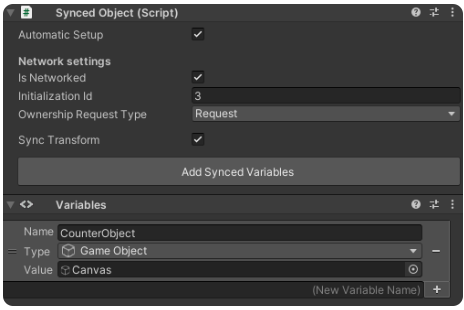
There are 6 types of variables that can be synchronized:
- "Int" is an integer number
- "Float" is a decimal number
- "Bool" is true of false
- "String" is a text
- "Vector3" is a vector X, Y and Z
- "Vector2" is a vector X and Y.
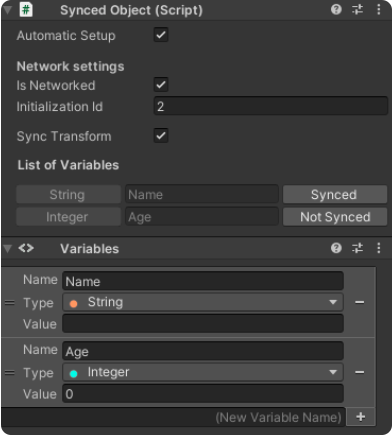
It's important that after adding the variables, you press on the "Not synced" button next to each individual variable to change it to "synced", if you want to synchronize it, so that it's seen updated in multiplayer.
Ownership Flow Nodes
Is Owned Locally Node
🔍
Reflectis>Flow>Reflectis Synced Object: Is Owned Locally
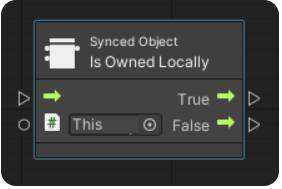
This Node checks if the local player owns the specified synced object. Executes the True flow if owned locally, otherwise the False flow.
- ⬇️ Input:
- SyncedObject (
SyncedObject), the synced object to check. If left empty, it defaults to the component on the same GameObject.
- SyncedObject (
The control output flows are:
- True, executed if the local player owns the object
- False, executed if the local player does not own the object.
Try Get Ownership Node
🔍
Reflectis>Flow>Reflectis Synced Object: Try Get Ownership
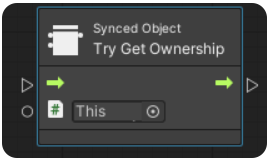
This Node requests ownership of the specified synced object, based on the Ownership Request Type configured on the SyncedObject component.
- ⬇️ Input:
- SyncedObject (
SyncedObject), the synced object to request ownership on. If left empty, it defaults to the component on the same GameObject.
- SyncedObject (
Release Ownership Node
🔍
Reflectis>Flow>Reflectis Synced Object: Release Ownership
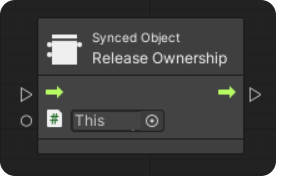
This Node releases ownership of the specified synced object. If the local player is not the current owner, nothing will happen.
- ⬇️ Input:
- SyncedObject (
SyncedObject), the synced object to release ownership on. If left empty, it defaults to the component on the same GameObject.
- SyncedObject (
Event Nodes
On Other Player Entered
🔍
Events>Reflectis>Reflectis Networking: On Other Player Entered
This event triggers when another player enters the current shard.
- ⬆️ Output:
- UserId (
int), the identification number of the player that entered - SessionId (
string), the session identifier of the player that entered.
- UserId (
On Other Player Left
🔍
Events>Reflectis>Reflectis Networking: On Other Player Left
This event triggers when another player leaves the current shard.
- ⬆️ Output:
- UserId (
int), the identification number of the player that left - SessionId (
string), the session identifier of the player that left.
- UserId (
Synced Object Events
In order for the synchronized variables to actually be displayed by other users, it's necessary to use events in the "Synced Object" script, as explained above.
On Owner Changed
🔍
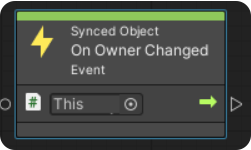
Events>Reflectis>Reflectis Synced Object: On Owner Changed
Is called when the user becomes the owner of the object. In the example below, the event is only called when the ownership request is successful, in which case it can execute the "Set Local Position" instruction on the object.
- ⬇️ Input:
- SyncedObjectRef (
SyncedObject), reference to the Synced Object to monitor. If left empty, it defaults to the component on the same GameObject.
- SyncedObjectRef (
On Owner Request Failed
🔍
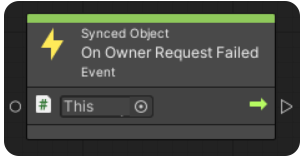
Events>Reflectis>Reflectis Synced Object: On Owner Request Failed
Is called when the ownership request fails, due to external problems, such as at the server or roles.
- ⬇️ Input:
- SyncedObjectRef (
SyncedObject), reference to the Synced Object to monitor. If left empty, it defaults to the component on the same GameObject.
- SyncedObjectRef (
On Owner Lost
🔍
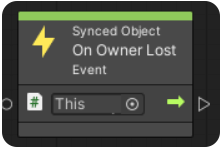
Events>Reflectis>Reflectis Synced Object: On Owner Lost
Is called when the user loses ownership, because it has been assigned to another user.
- ⬇️ Input:
- SyncedObjectRef (
SyncedObject), reference to the Synced Object to monitor. If left empty, it defaults to the component on the same GameObject.
- SyncedObjectRef (
Synced Variable Events
Regarding synced variables, there are 3 event nodes which can be called in the node graph:
On Synced Variable Changed
🔍
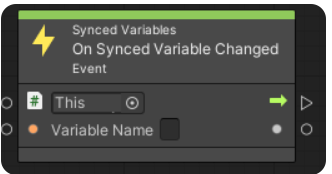
Events>Reflectis>Reflectis Synced Variables: On Synced Variable Changed
Is called when the value of the variable, with the same name written in "Variable Name", has been changed. In addition, the variable will be synchronized only because of this event, otherwise the change will occur only locally.
If a change to a variable is called, but the value remains the same, then this event will not be called.
-
⬇️ Input:
- VariableName (
string), the name of the synced variable to monitor.
- VariableName (
-
⬆️ Output:
- Value (
object), the new value of the synced variable.
- Value (
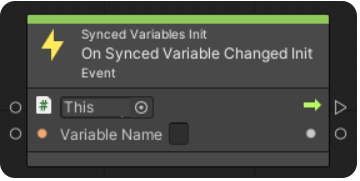
On Synced Variable Changed Init
🔍
Events>Reflectis>Reflectis Synced Variables: On Synced Variable Changed Init
Is called at scene initialization, only if actual changes of the recalled variable in "Variable Name" have occurred. This node is called only if the user isn't the creator of the room and enters later, and is used to call back any instructions executed at the time of the variable change. (e.g. starting a sound or changing a score).
-
⬇️ Input:
- VariableName (
string), the name of the synced variable to monitor.
- VariableName (
-
⬆️ Output:
- Value (
object), the value of the synced variable at the time of the last change.
- Value (
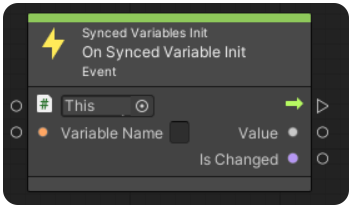
On Synced Variable Init
🔍
Events>Reflectis>Reflectis Synced Variables: On Synced Variable Init
Is called at scene initialization for each user entering the room. This node shows the value of the variable specified in the variable name field when entering the room, and shows if that variable has been changed at least once from the starting values in the scene.
-
⬇️ Input:
- VariableName (
string), the name of the synced variable to monitor.
- VariableName (
-
⬆️ Output:
- Value (
object), the current value of the synced variable upon entering the room - IsChanged (
bool), whether the variable has been changed at least once from its initial value.
- Value (