Test the Experience
After publishing a scene, creating the related Experience and enabling it in the context of your World, it’s time to test it!
How to access the Experience
Access to your Tenant/World and log in if required.
The World may be in "Catalog" mode or "Play" mode. Your testing experience depends on this configuration.
"Play" mode
If the World doesn't have a Default Experience, it must be set and you can choose the one to test. Here you can find how to set it up.
If the Experience is not the primary one, it should be reachable from another one via a Scene Changer Placeholder or Visual Scripting node.
"Catalog" mode
A list of Experiences is shown. You should find the one that you want to test, click on it and test. Here is how the Catalog works.
How to interact
Different platforms interact with the world in different ways:
-
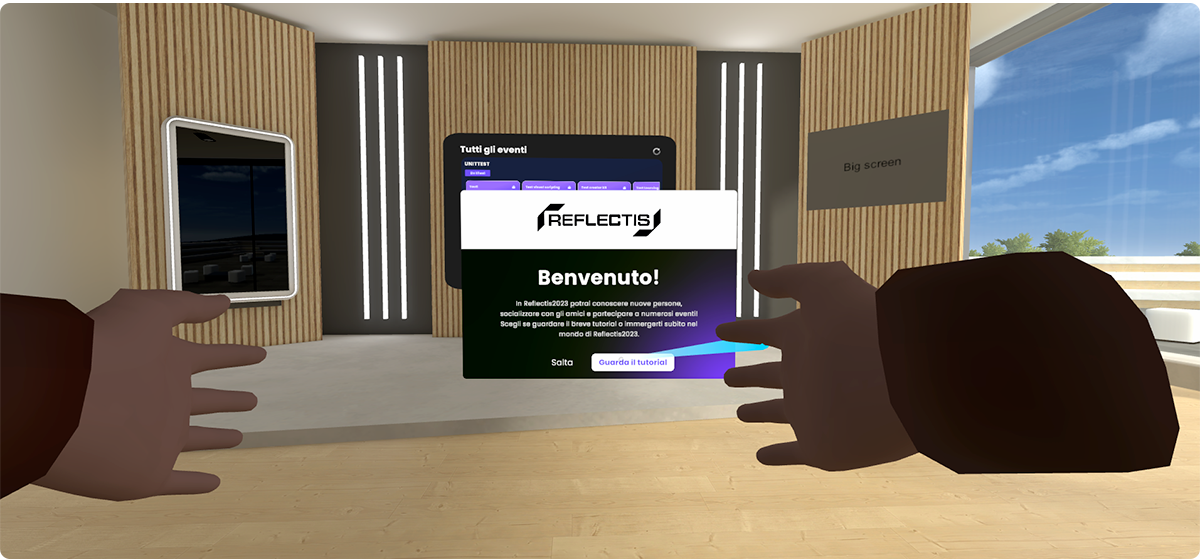
VR - Using the Pointer & Trigger button
- Point the controller toward the desired object
- A blue ray will appear from the controller toward the object (only for interactable objects)
- Press the trigger button on the back of the controller to select it and interact with it.
-
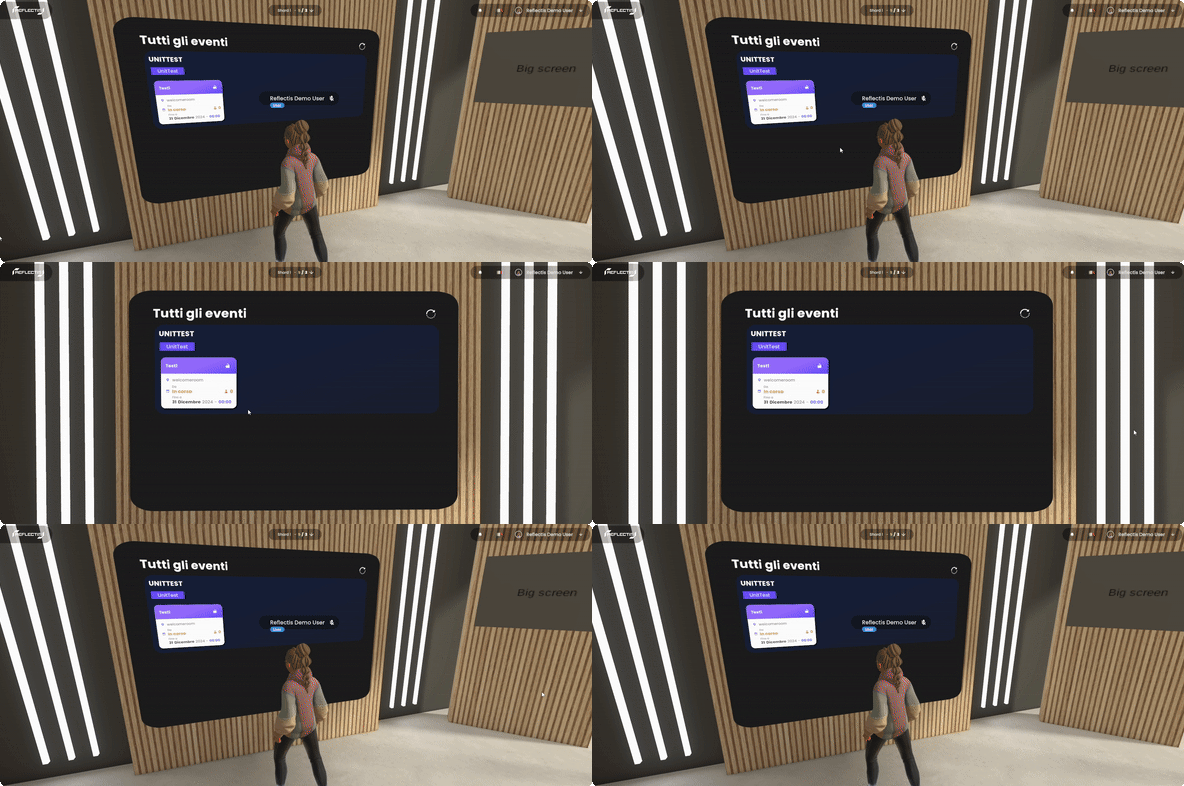
WebGL - Left Button Click on the interactable objects
- Move the mouse cursor over an object
- Press the left mouse button to interact with it.
Now you have all the basics to create your own Worlds in Reflectis!