Publish the Environment
When the addressables have been compiled, they need to be published. The creator must use the Back Office portal to import the addressables to the main server and allow the scenario to be selectable to be visited in an experience.
The name of the addressable scene will give the name to the uploaded environment. The visual name can still be edited inside the Back Office Environment section after the upload.
Upload via external client
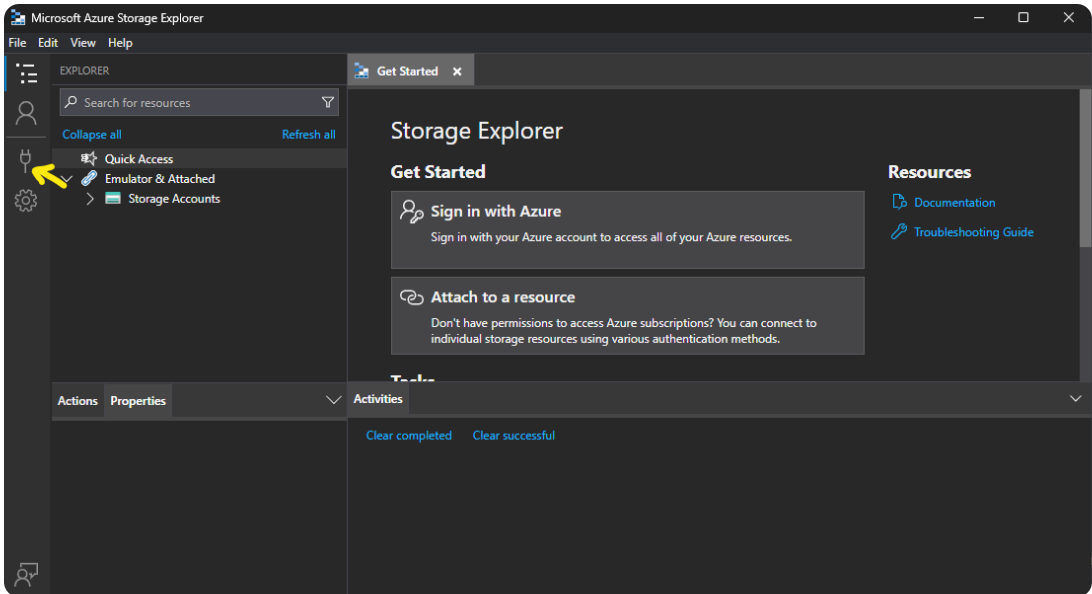
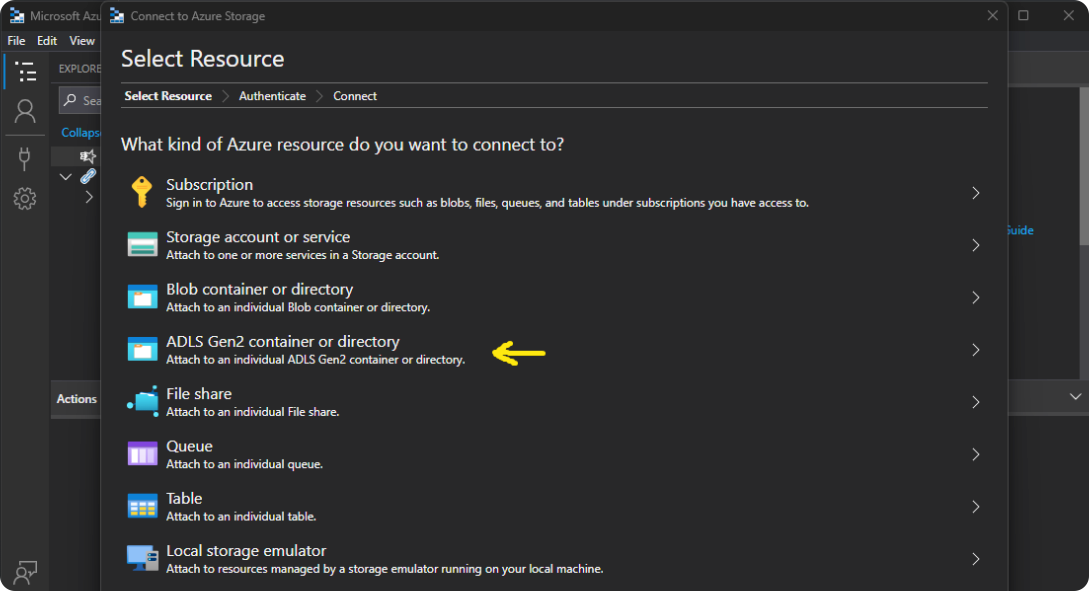
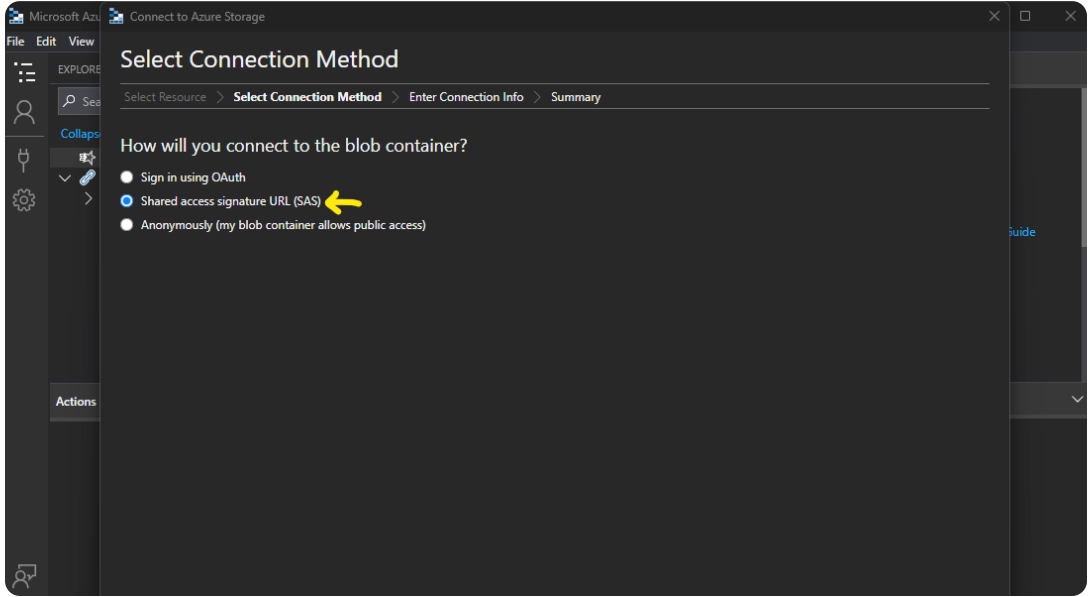
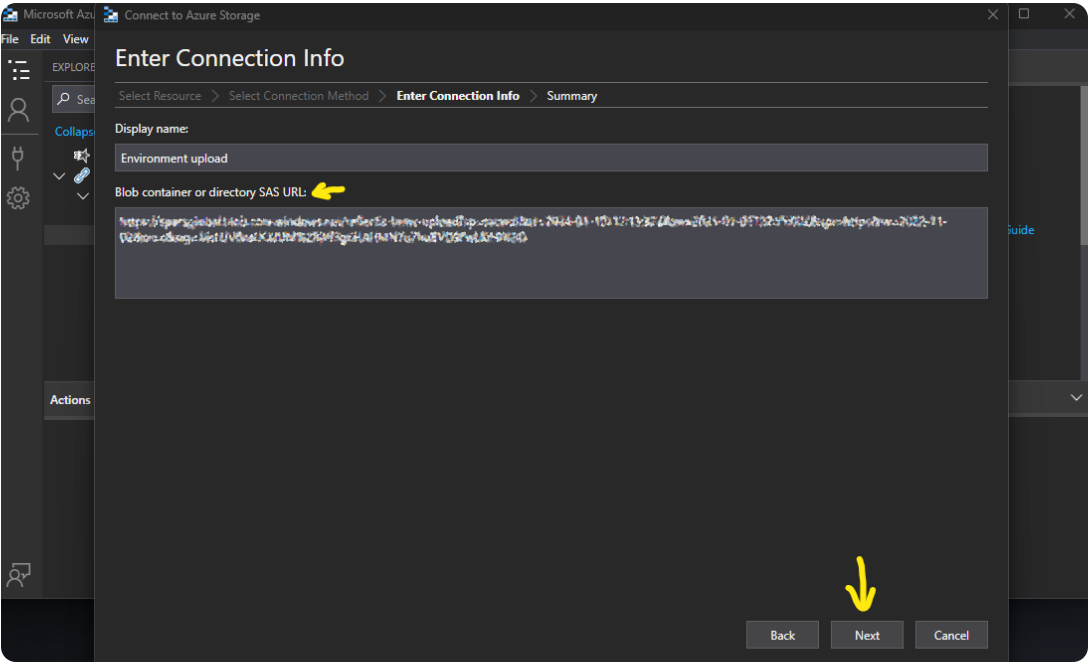
To upload an environment, it's necessary to connect to Azure Storage Explorer and to follow these steps:
-
Download Azure Storage Explorer here. Credentials have been shared through email and will expire at the end of Reflectis license lifetime.
-
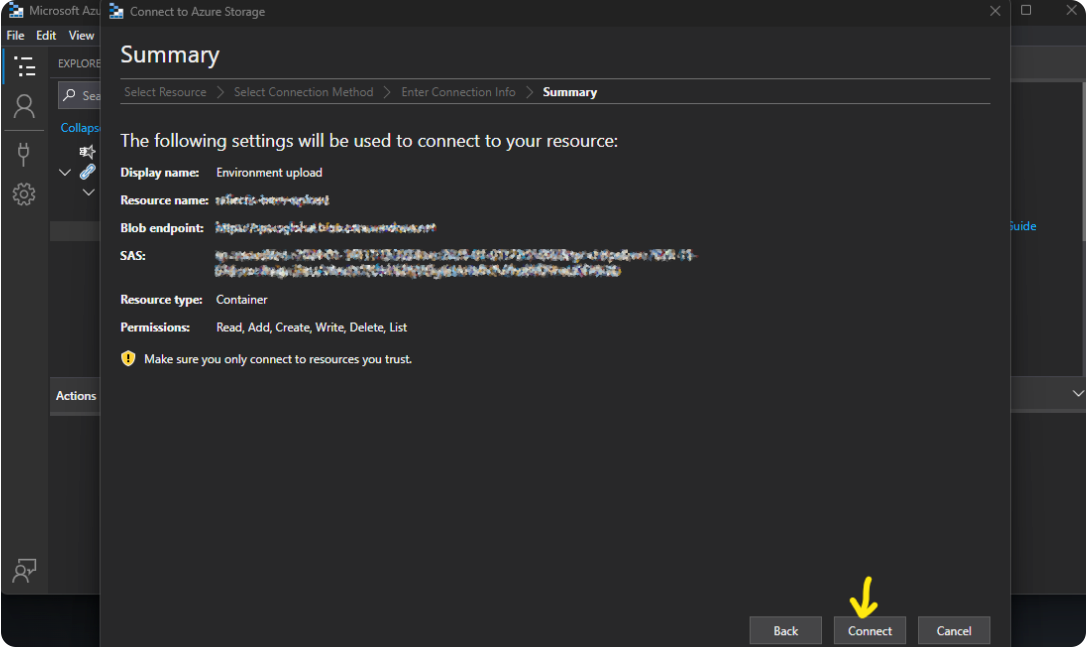
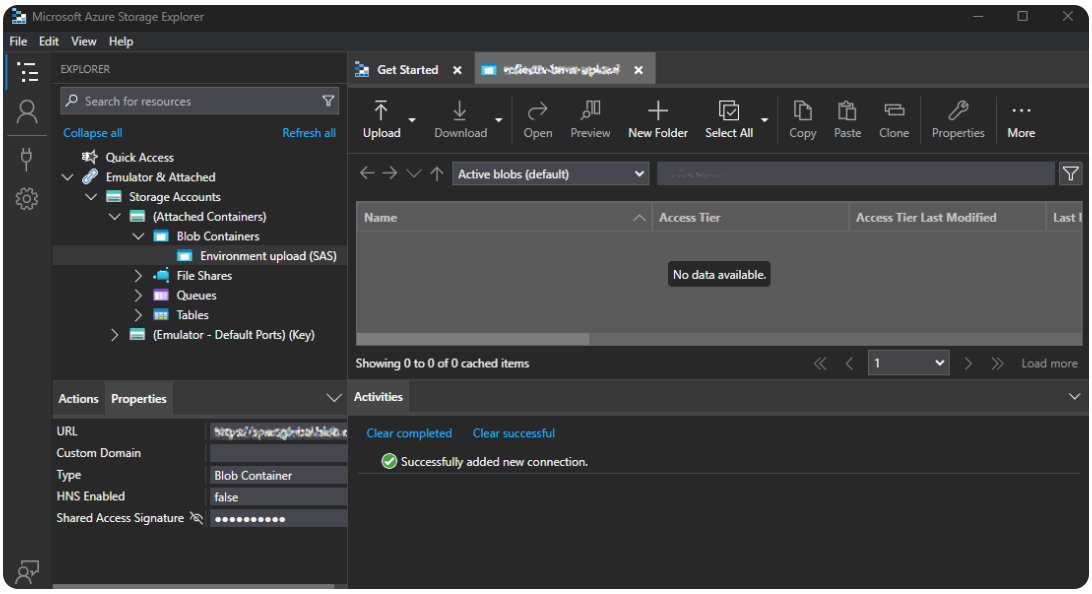
Follow the instructions defined in the images below:
-
The Upload URL can be found in the "World"" section of the Back Office under "Link Upload Zip".
Different Worlds have different URLs.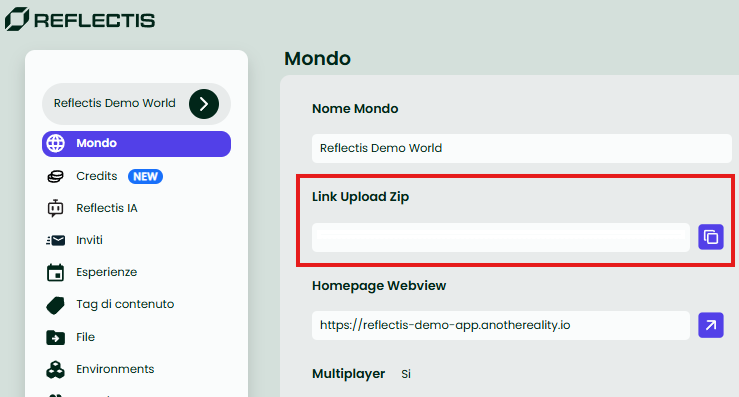
-
Drag your .zip file here:
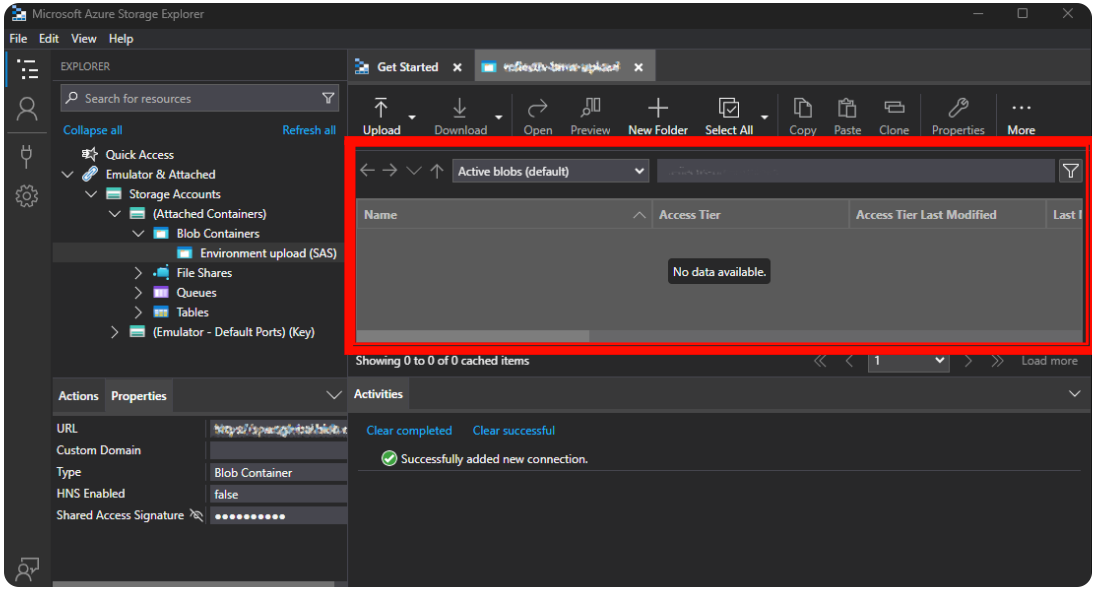
Now the .zip file will be selectable from the Back Office’s environments section as described below.
".zip" files with the same name will be overwritten. Remember to backup the previous version to prevent data loss and have a better way to rollback content.
Import the Environment and create an Experience
Once the Environment is uploaded, you need two more things before being able to use it: import and create an Experience.
To import the uploaded Environment, you can find the instructions in the Environments section.
Then, it's time to create the Experience! Explore how Experiences work and follow the instructions to create a new one using your Environment!
If you don't see these two menu items, it means that you don't have the permissions to manage these entities. In this case, ask to the Owner of the World to help you!