Create / Edit Experience
Click + New Experience (top-right) to add a Core Experience and + External APP an External App.
A) Core Experience (2-step wizard)
1 · Select an Environment
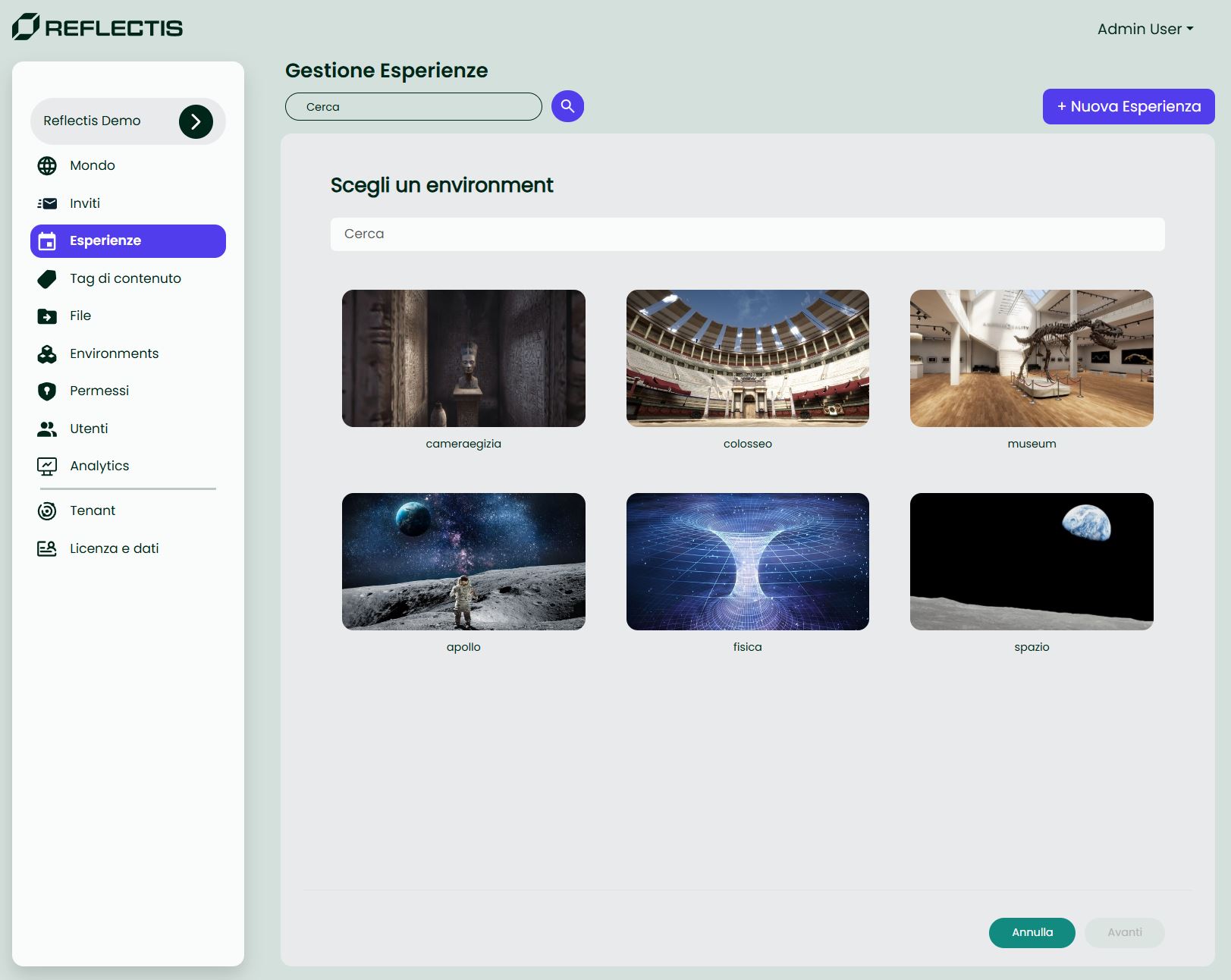
- Search the desired environment.
- Click a card to select it (blue outline = selected).
- Press Avanti.
2 · Configure the Experience
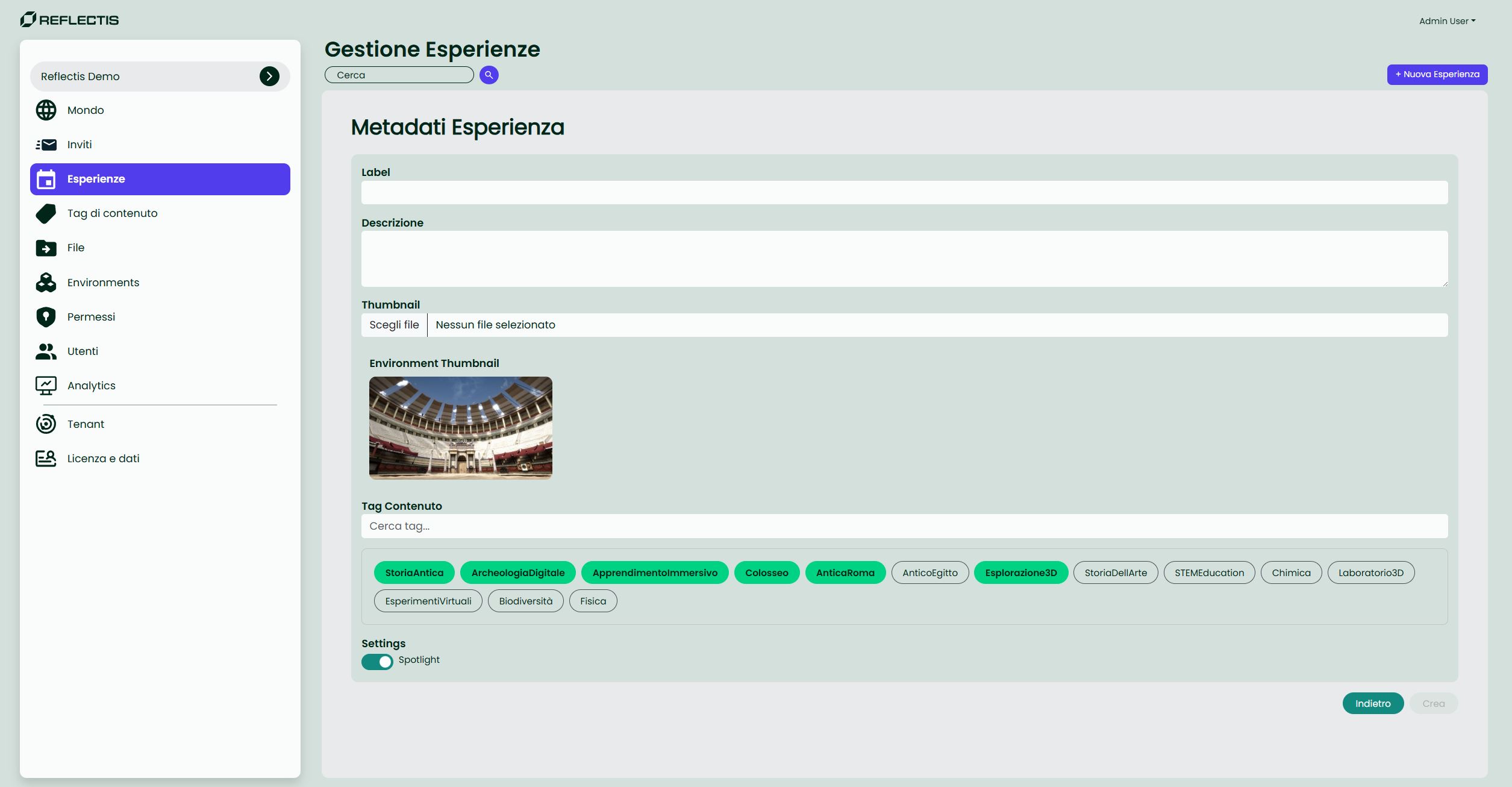
| Field | Description | Required |
|---|---|---|
| Label | Display name shown in the Catalog. Pre-filled from the Environment name, fully editable. | ✔ |
| Description | Short text shown in the Catalog detail (max ~300 chars). | |
| Thumbnail | 16:9 cover image (PNG/JPG). Inherits the Environment thumbnail; upload to override. | ✔ |
| Content Tags | Pick one or more Content Tags (defined in Content Tag section) to improve search and filtering. |
Platforms: availability (WebGL/VR) is inherited from the Environment.
Actions
- Indietro — go back to environment selection.
- Crea / Salva — save the experience. Use the list
a catalogoswitch to publish it.
Tip
Published items appear immediately in the Catalog—no extra deployment needed.
B) External App
Use this when the Catalog item must open an external application instead of a 3D scene.
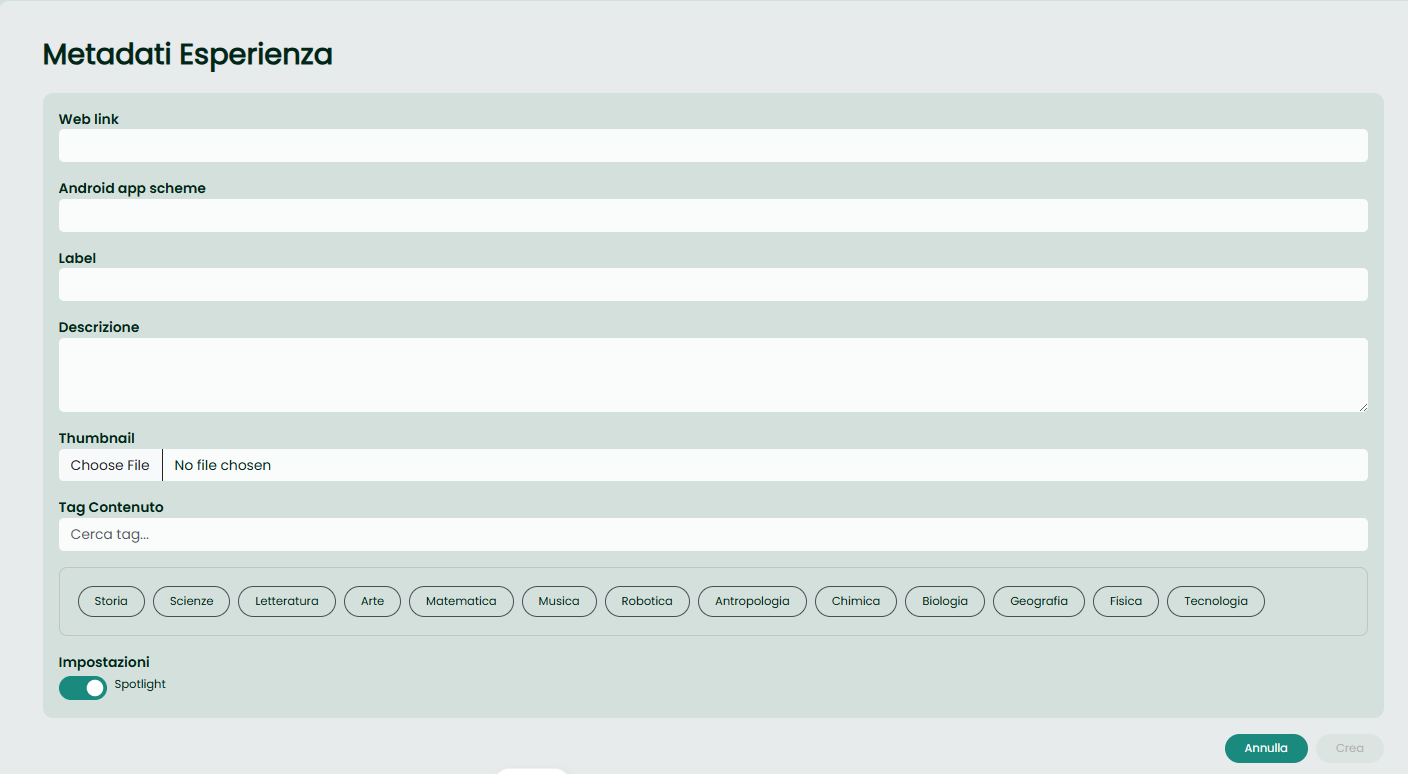
Fields
- Web link – HTTPS URL to open on web clients.
- Android app scheme – Deep link for Android/VR devices (e.g.,
myapp://open). - Label and Description – Texts shown in the Catalog.
- Thumbnail – Required cover (16:9).
- Content Tags – For search and filtering in the Catalog.
- Spotlight – If enabled, the app can appear in the Catalog hero carousel.
Behaviour
- On launch, the external application is opened and the user is auto-authenticated.
- External Apps do not use sessions/lobbies; they launch directly.
- Publishing/unpublishing works the same as for Core Experiences (toggle
a catalogo).
Related
For how World Mode (Catalogo | Play) affects how Experiences are surfaced—and how to set a Default Experience for Play—see Experiences → How World Mode affects Experiences.