Content Tags
The “Content Tags” section replaces the legacy Categories page and offers a single-level, flexible labelling system that can be reused across every type of content.
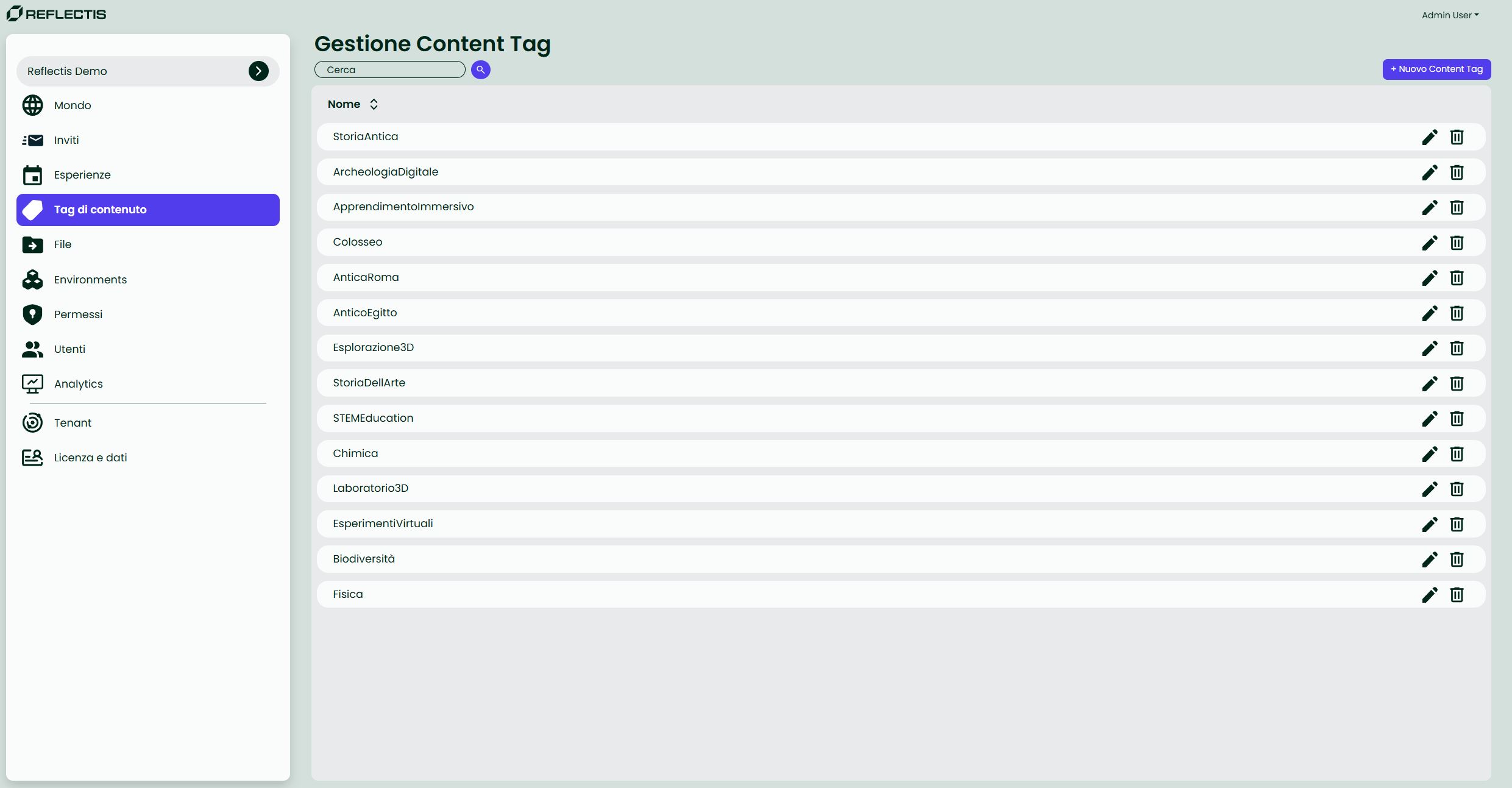
No hierarchy — tags live on one flat level; there are no sub-tags or nested structures.
Why tags?
- Make searching and filtering easier for end-users.
- Keep the Back Office simpler by avoiding deep category trees.
Where tags can be assigned
| Content area | Location | Who can assign |
|---|---|---|
| Environment | Back Office → Environments › Edit | Admin / Author |
| Experience | Back Office → Experiences › Edit | Admin / Author |
| Session | In-app → Le mie esperienze › Dettagli sessione | End-user (host) |
A single tag may be used on multiple items, and each item can carry multiple tags.
List controls
| UI element | Purpose |
|---|---|
| Search bar | Filter tags by name. |
| Add Tag | Create a new tag (name only). |
| Trash Can | Delete the tag permanently. |
Creating a tag
- Click Add Tag (top right).
- Enter the tag name. Caratteri ammessi: lettere, numeri e spazi.
- Confirm with Crea. The tag appears in the list and becomes selectable in Environment and Experience forms.
Tip Tags are instantly live; no further publication step is needed.