Dashboard and Events
The dashboard is a centralized panel that provides access to events on the platform. Events can be either public or private, and are created by users in a chosen 3D environment where they can utilize the available features freely.
The dashboard can be accessed in two ways:
- Through the tablet.
- As a fixed panel in certain predefined environments.
Interaction with the Dashboard
WebGL
- Fixed Dashboards: Clicking on a fixed dashboard zooms in on the screen, enlarging it for clear readability
- Portable Dashboards: The dashboard can be opened by clicking on the tablet and then selecting the dashboard button.
VR
- Fixed Dashboards: Interact by approaching the dashboard and pointing the controller at the content.
- Portable Dashboards: Open the tablet and use the pointer to click the dashboard button, which will display the events panel.
Event Creation
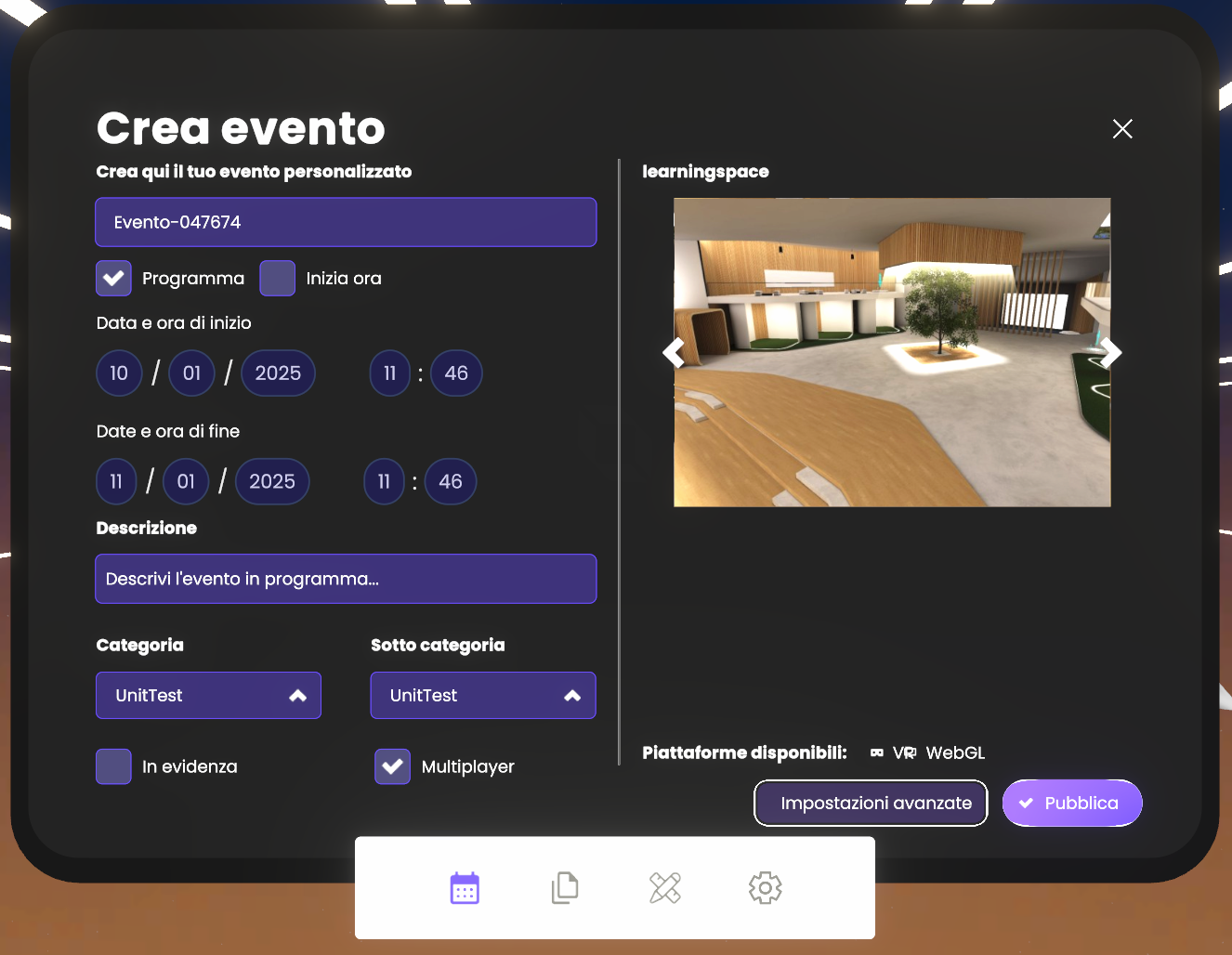
To create a new event, access the Dashboard section on the tablet and click the "Create Event" button. A panel will appear, allowing the configuration of event details in the following fields:
- Title of the event.
- Whether the event is scheduled (by specifying start and end date/time) or starts immediately (by specifying the duration).
- Short description of the event.
- Category and subcategory (as configured in the Back Office).
- If the event is highlighted, which displays it prominently on the dashboard.
- Environment, chosen from the available environments on the platform.
Platform compatibility of the chosen Environment (VR or WebGL) is displayed at the bottom of the panel, ensuring clarity on where the event can be accessed.
Event Modes
The system supports the creation of the following event modes:
- Multiplayer Events: Designed for group participation, compatible with VR and WebGL platforms.
- Single-Player Events: Focused on individual experiences, allowing participants to explore environments or engage in activities alone.
Once these fields are filled out, the user can publish the event, or click the "Advanced Settings" button that leads to further configurations:
- Users - this section contains options for visibility and access.
From here, the user can choose if the event will be:
- Public: Default limit of 30 participants, or unlimited.
- Private: Options to make the event hidden (accessible only via invitation) or visible (displayed but accessible by invitation only) and to invite participants by entering their nicknames, roles, or tags.
- Permissions - section used to assign permissions to roles and tags. Default permissions can be used or customized as needed for the event.
Event Management
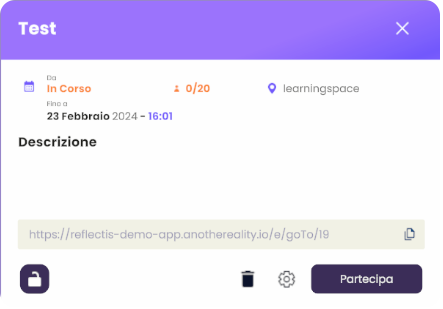
Events created by the user can be managed through the "My Events" section on the tablet. Each event is displayed with options to edit or delete it.
Editing and Deleting Events
Events can be edited or deleted either through the tablet’s My Events section or by selecting the event directly from the fixed dashboard.
If an event is deleted while in progress, users already in the event are not removed. They can continue to interact within the session until they leave voluntarily.