Dashboard and events
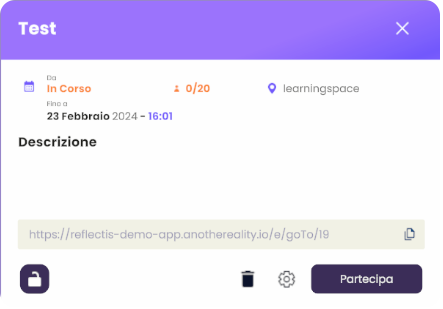
The dashboard is a panel that contains the events of the platform.
Events are public or private sessions, created by users in a 3D environment chosen from those available, in which they can freely use the available features.
The dashboard can be accessed either from a tablet, or fixed in certain predefined environments.
Interaction with dashboard
In WebGL the interaction is as follows:
- For fixed dashboards, the user can click on it to zoom in on the screen and see it enlarged, so that he can read all the information clearly
- For portable dashboards, the user can click on the tablet and then on the dashboard button to open the panel with events.
In VR the interaction is as follows:
- For fixed dashboards, the user can approach and point the controller to the content
- For portable dashboards, the user can open the tablet and click with the pointer on the dashboard button, to open a panel with events.
Event creation
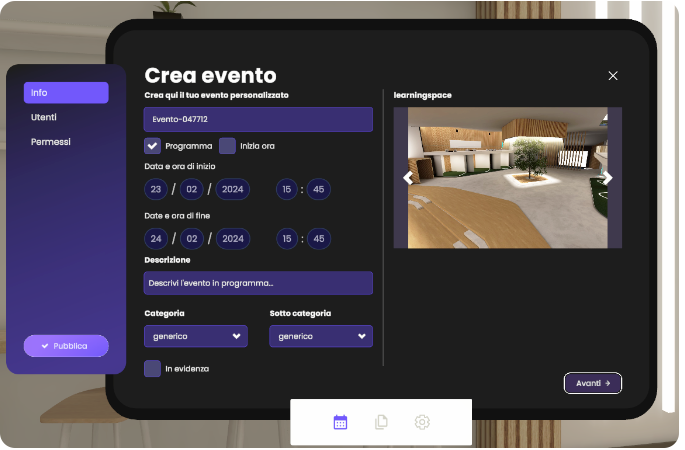
In order to create a new event, the user has to access the tablet, in the Dashboard section, and click on the "Create Event" button. He will have a panel available with these fields:
- Title
- If the event is to be scheduled (by entering a start and end date and time), or if it starts at the moment (by indicating the duration of the event)
- Short description
- Category and subcategory, among those added by backoffice
- If highlighted (only for Super User/Manager), in this case it will appear in the foreground on the dashboard
- Environment, choosing from those available on the platform.
Then, by clicking the "Next" button, the user can decide whether the event will be public, with a default limit of 30 people or unlimited, or private. In the latter case, you can decide whether to make it hidden for guests only or visible, but access will be by invitation only.
To enter the users for whom the event is intended, you may enter their nickname, or directly add a role or tag.
The third step concerns the permissions to be assigned to roles and tags. The user may leave the default ones or change them according to your needs on the event. Finally, the last panel is dedicated to the files to be shared in the event, among those that have already been uploaded from backoffice.
Event management
In the "My Events" section on the tablet, the user can view events created by himself. Each event will have two buttons to edit or delete it.
The user can delete or edit an event that he has previously created through the "My Events" section on the tablet or by clicking on his event from a fixed dashboard.
Regarding removal, if the event is in progress and there are users in it, they won’t be kicked out of the room, but can continue to use it, until they voluntarily leave it.