First steps
To join Reflectis, just follow the steps depending on which platform you want to use!
What you need
- VR application: Download and install the Reflectis application (link available soon on AppLab). Reflectis is available on Meta Quest 2, Meta Quest 3 and Pico 4.
- Web application: Nothing to download! Click on this to register and access the web application.
Registration
VR and WebGL users must register to access both applications. The registration portal is accessible through the landing page.
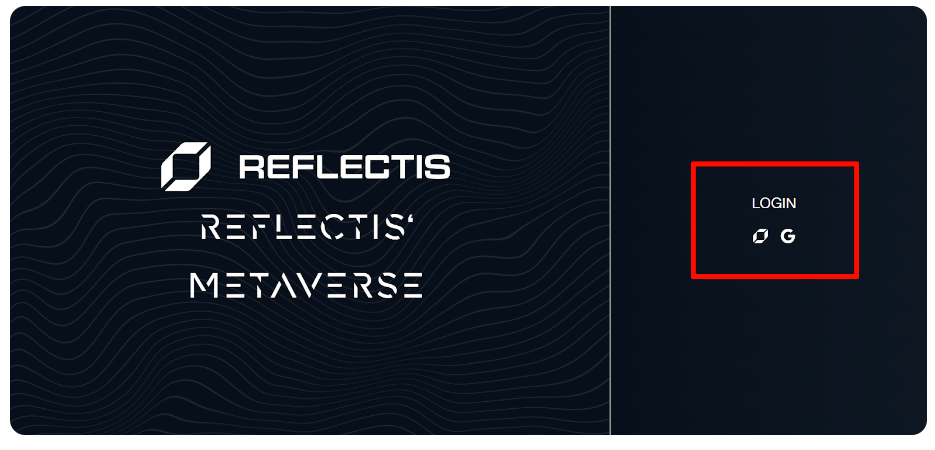
Click on "Iscrizione immediata" to open the registration form and complete it.
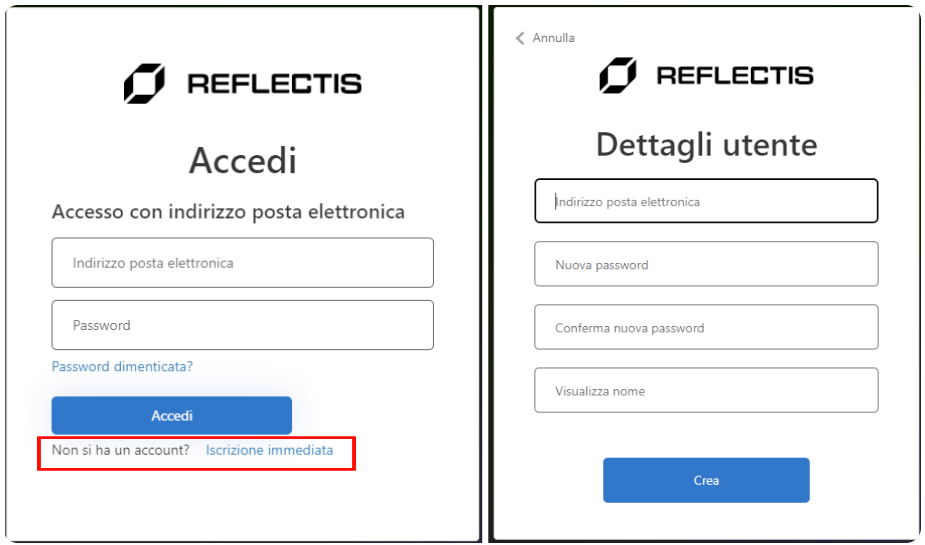
After completing the registration you are ready to enter the Reflectis Virtual Platform!
Creating account
Before entering the 3D world, it is required to create your profile and an avatar, through the Ready Player Me software.
First, you need to fill out this information (only the username is mandatory):
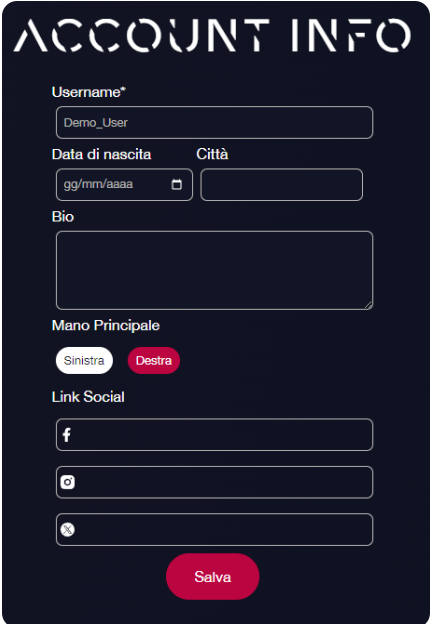
Once you click "Save", you can choose an avatar from Ready Player Me.
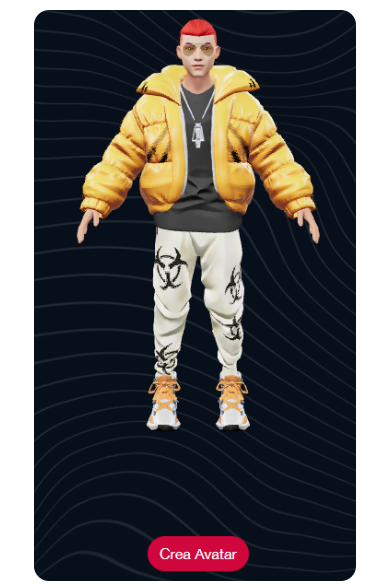
You can choose it from the default ones, or select it from your Ready Player Me account, click on "Crea Avatar".
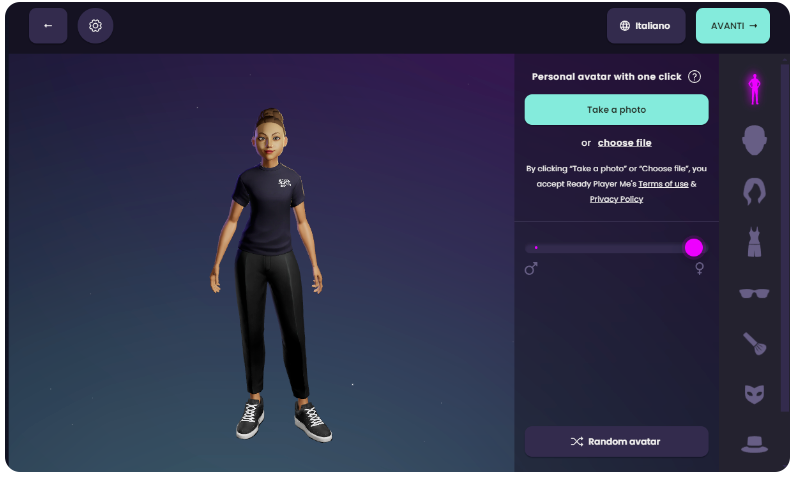
You are now ready to access the virtual platform!
To learn the system of movement and interaction with the environment, you can consult this guide.
Choosing the World
After successfully logging in you'll be redirected to the selection of the World you want to enter inside the Tenant. The list is comprised of only the Worlds where the user has been granted access to.
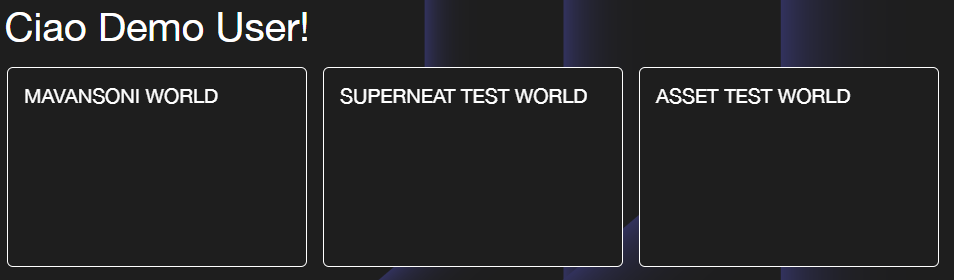
If the user has access only to one world in the Tenant, he'll be instantly redirected to that world's landing page instead.
The same page structure is similar to the world's backoffice page selection, as shown in the Backoffice Selection section of the documentation.
Accessing the World's Landing Page
After the world has been selected, the user will be redirected to its landing page:
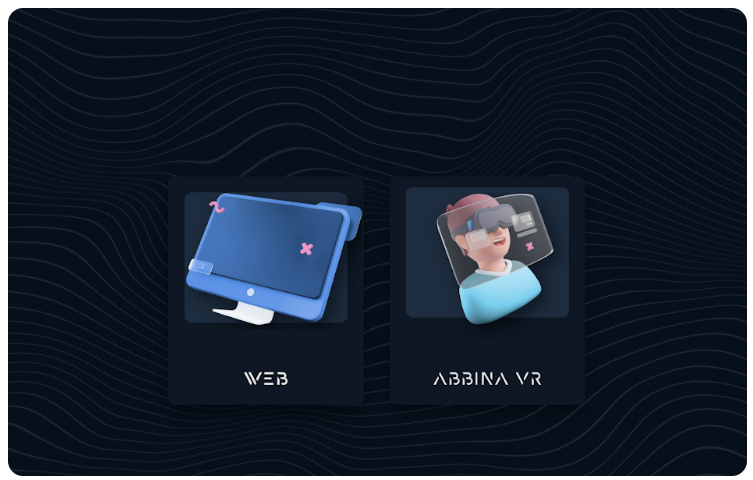
In this page you'll be able to access the Reflectis Virtual platform in the following ways:
- Entering the Web application by pressing the Web option on the left.
- Pairing the VR headset with your account to access the virtual platform via VR application.
To learn how to pair your headset check the VR Pairing section.