Catalog Page
Featured carousel
At the very top of the Catalog a carousel highlights a handful of featured experiences picked by your administrators.
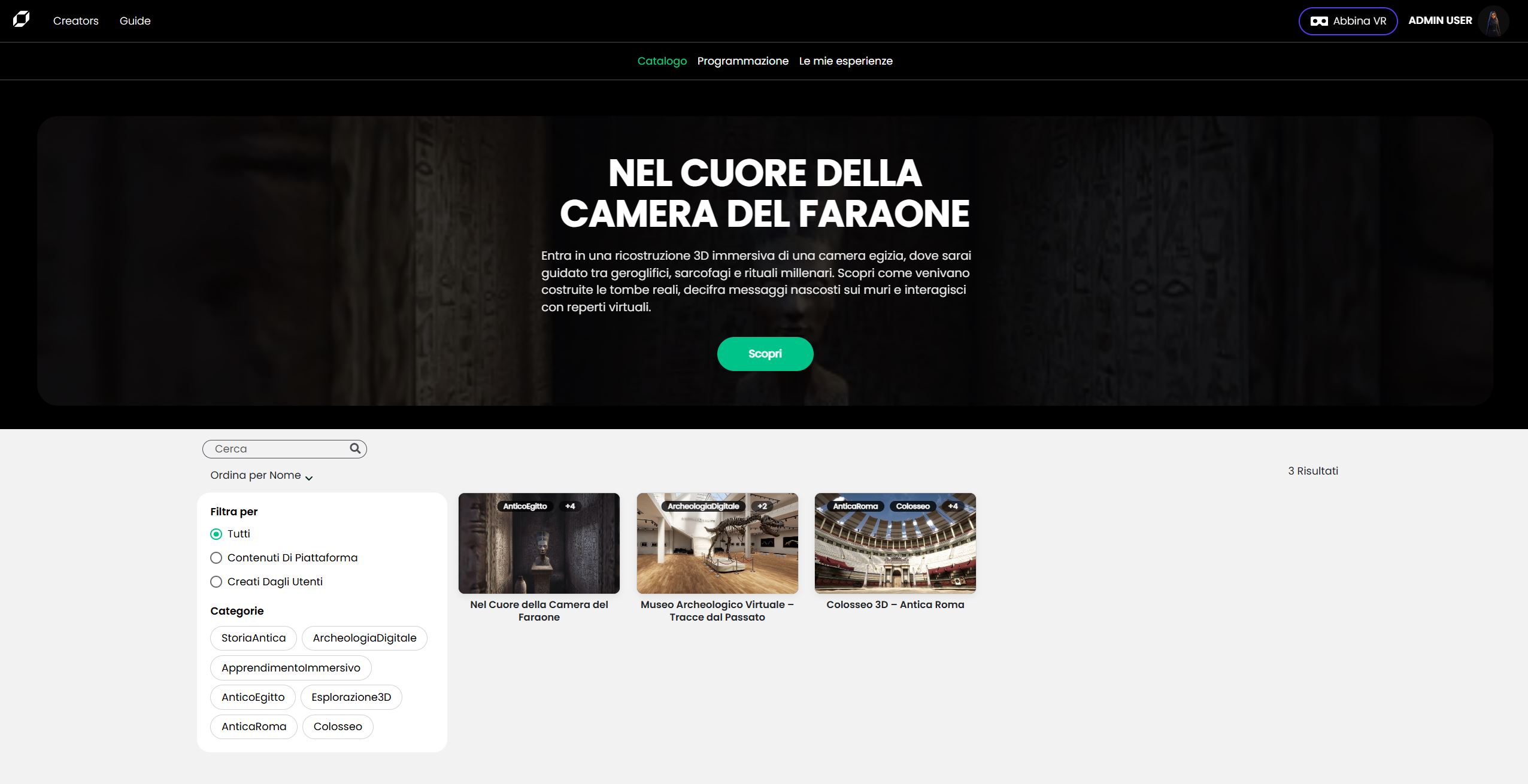
Each slide shows the experience’s cover image, title, a short pitch and the green Discover button.
Scheduling preview
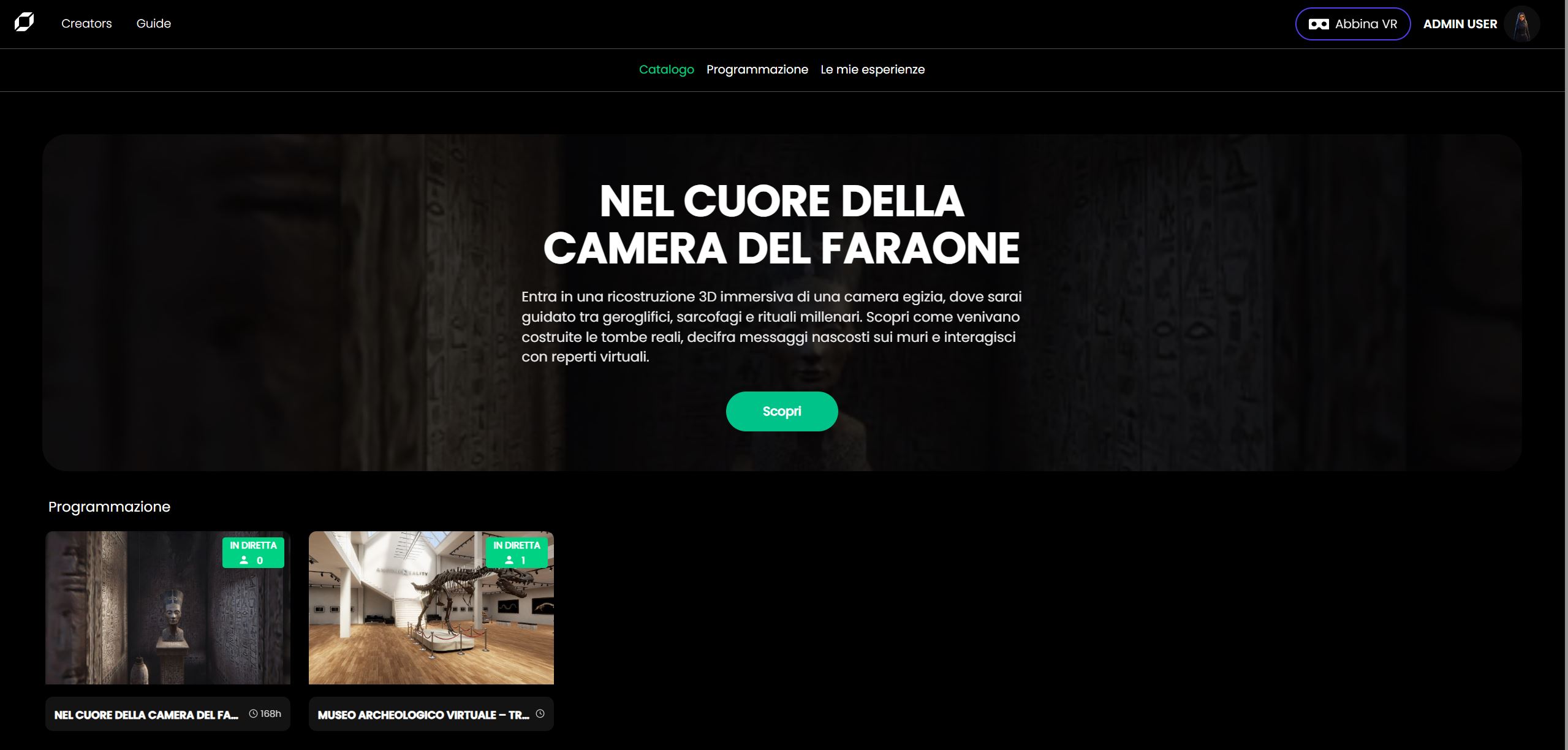
Immediately below the carousel you may notice a narrow strip titled Scheduling.
It shows a live preview of sessions that are about to start or are currently running.
Click the strip (or the Scheduling tab in the top bar) to open the full timetable page.
External Apps filter
In the Catalog toolbar you’ll find the External Apps filter.
When enabled, the grid shows only items that launch an external application (instead of a 3D scene).
- Can be combined with search, tags and sorting.
- External Apps launch directly from their card/overlay (no Sessions/Lobby) and the user is logged in automatically.
Experience overlay
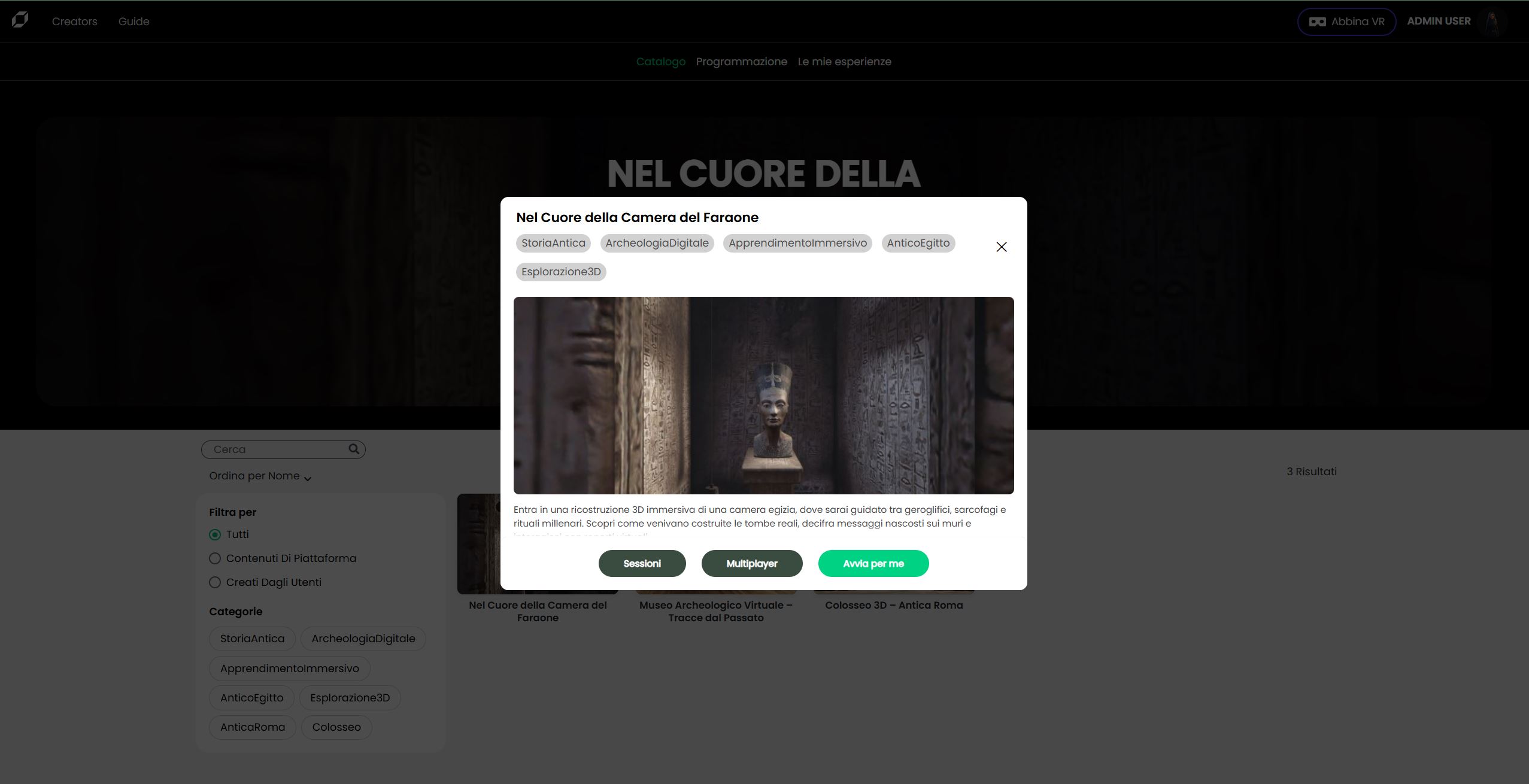
Click Discover on the carousel or any card in the grid to open the experience overlay.
Tabs
| Tab | What you can do |
|---|---|
| Detail | Read the description, watch the trailer image and review the tags. |
| Sessions | List of all active sessions for this experience (host name + status). |
A quick-access bar at the bottom offers three actions:
| Button | Result |
|---|---|
| Sessions | Switches the overlay to the Sessions tab. |
| Multiplayer | Jumps straight into the public lobby (you will meet other participants already inside). |
| Start for me | Creates a private single-player session and launches it right away. |
Creating a new session
Open the Sessions tab and press Create session.
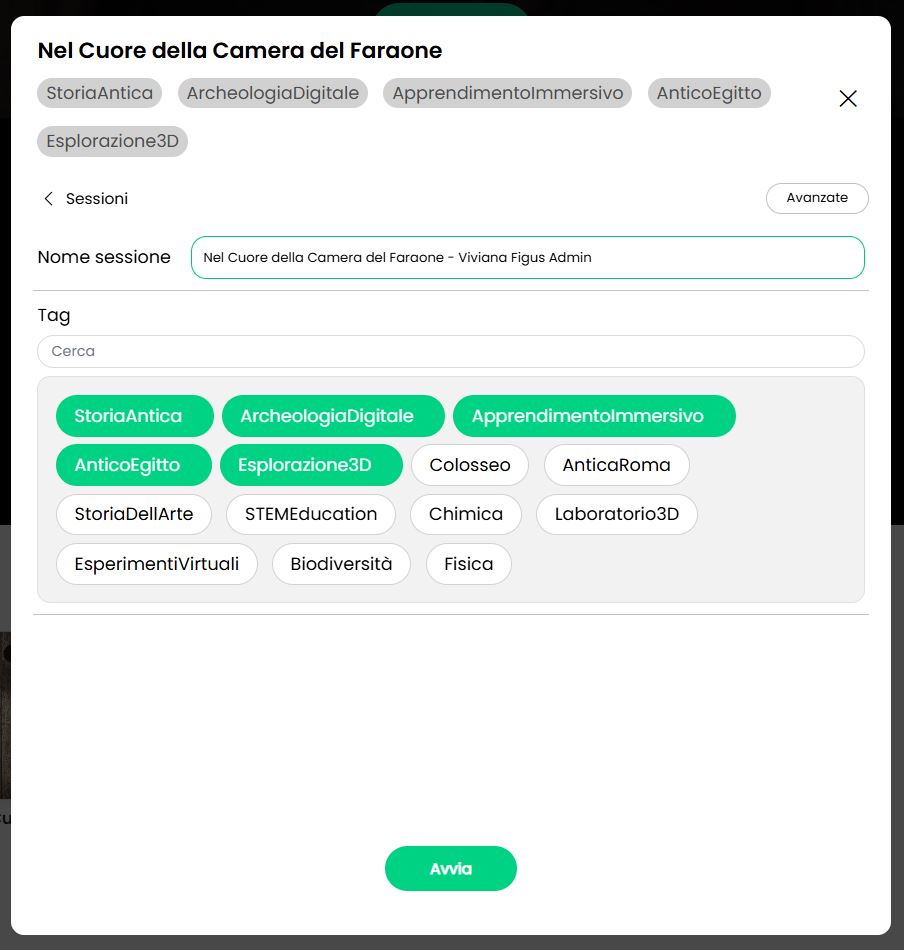
- Simple view – choose a name and add (optional) content tags, then Start.
- Click Advanced to reveal extra options:
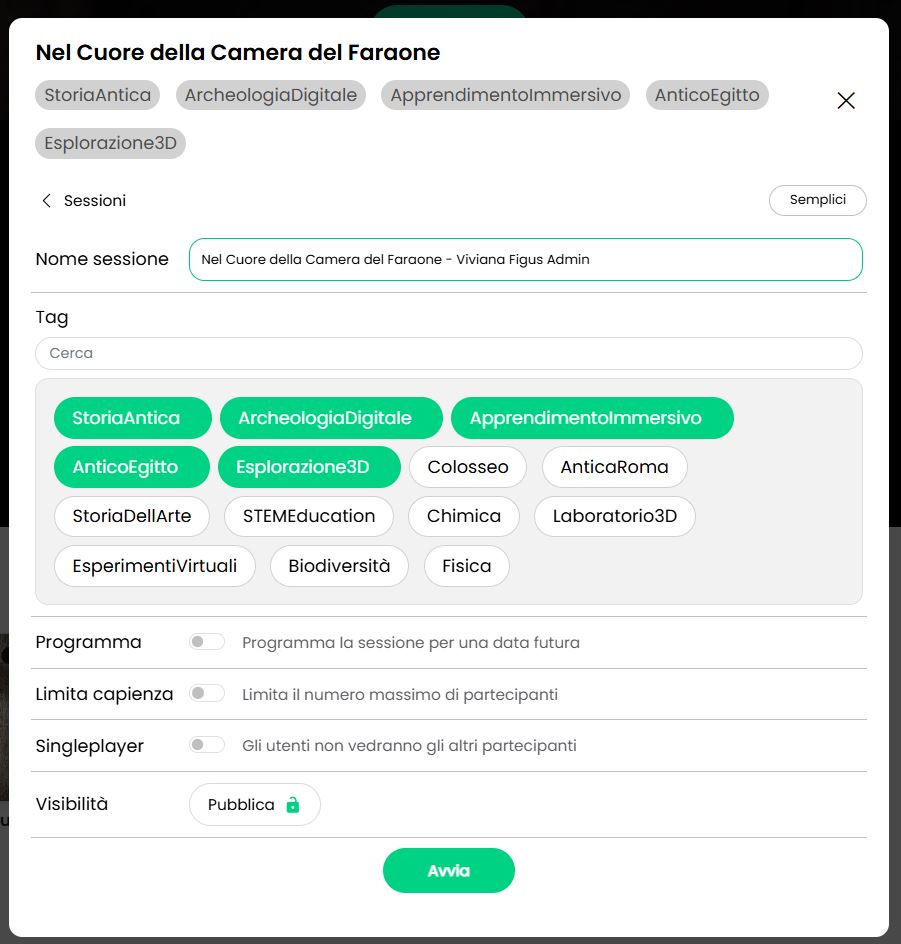
| Option | Description |
|---|---|
| Schedule | Pick a future date & time instead of launching immediately. |
| Capacity limit | Enforces the max-users-per-shard defined for the World: once that limit is reached no new shards are spawned and additional users cannot join. |
| Single-player | Creates a strictly one-user session: every person who joins gets their own private instance, invisible to others. |
| Visibility | Toggle Publish to open the attendee selector. You can filter World members by name, e-mail or tag and send invitations; if left off, the session remains hidden. |
Press Start (or Schedule, if you selected a future date) to create the session.
You will be redirected to the lobby and can share the invite link with your audience.
Behaviour in single-player worlds
Some worlds are flagged as Single-player only:
- The Sessions tab and Multiplayer button are hidden.
- Users see only the Start for me button, which launches a private instance of the experience.
Everything else—carousel, search, filters and tags—works exactly the same.