Tenant Environments — Upload & Sharing
This page explains how a Tenant Manager can upload and share environments at tenant scope.
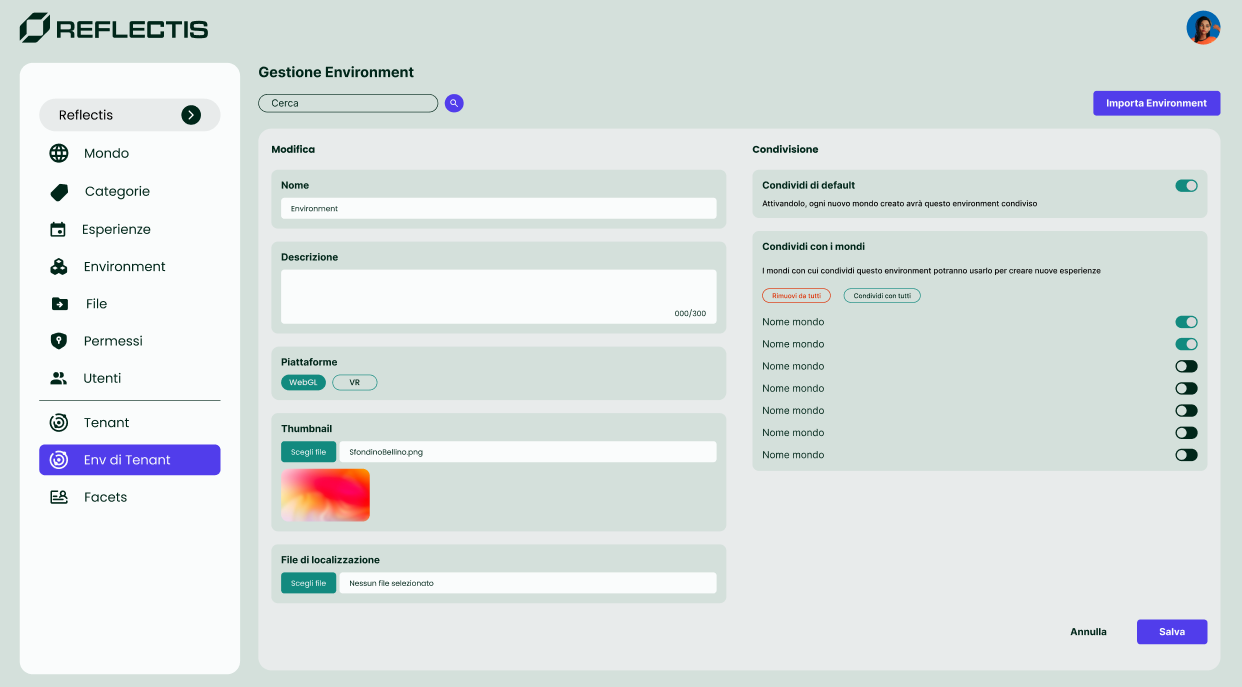
Tenant Environments are centrally managed and can be shared with one or more Worlds. World Owners can use them to create Core Experiences, but they are read-only (cannot be edited or deleted at world level).
Prerequisites
- Role: Tenant Manager access.
- Environment package: build produced with the Reflectis Creator Kit (see the dedicated guide).
- Storage: credentials for Azure Storage upload.
- Thumbnail: 16:9 PNG/JPG required to avoid the Incomplete status.
Step 1 — Upload the package to Azure Storage
- Open Azure Storage Explorer with the provided credentials.
- Upload the environment ZIP package to the path indicated by your administrator.
- Verify the filename follows your internal conventions (e.g., avoid spaces/accents if required by the build).
Note
The importer still accepts ZIPs containing multiple environments, but we strongly recommend packaging one environment per ZIP to align with the new flat-list grouping rules and simplify updates, rollbacks, and maintenance.
Step 2 — Import in the Back-Office (Tenant)
- Go to Tenant → Tenant Environments.
- Click Importa Environment (top-right).
- In the side panel, pick the ZIP you uploaded to Azure Storage.
- Confirm with Importa — every environment inside that ZIP appears in the list.
Complete/verify the following fields (per environment):
| Field | Description |
|---|---|
| Name | Display name shown in Back-Office and pickers. |
| Description | Optional, up to ~300 characters. |
| Platforms | Availability: WebGL and/or VR. |
| Thumbnail | 16:9 PNG/JPG required. |
| CSV for translations | Optional localisation file used by the build. |
Click Save.
Incomplete alert
Without a Thumbnail the environment is marked Incomplete and will be flagged in the Experience-creation wizard as well.
Step 3 — Share with Worlds
Open the environment in Edit mode (click the row or the pencil icon).
On the right-hand Sharing panel you’ll find:
-
Share by default
If enabled, every new World created in the tenant will automatically include this environment.
Note: it does not retro-apply to existing Worlds. -
Share to world
The list of all Worlds with a per-world toggle. Use Select all / Deselect all for bulk actions.
A green/active toggle means the environment is currently shared with that World.
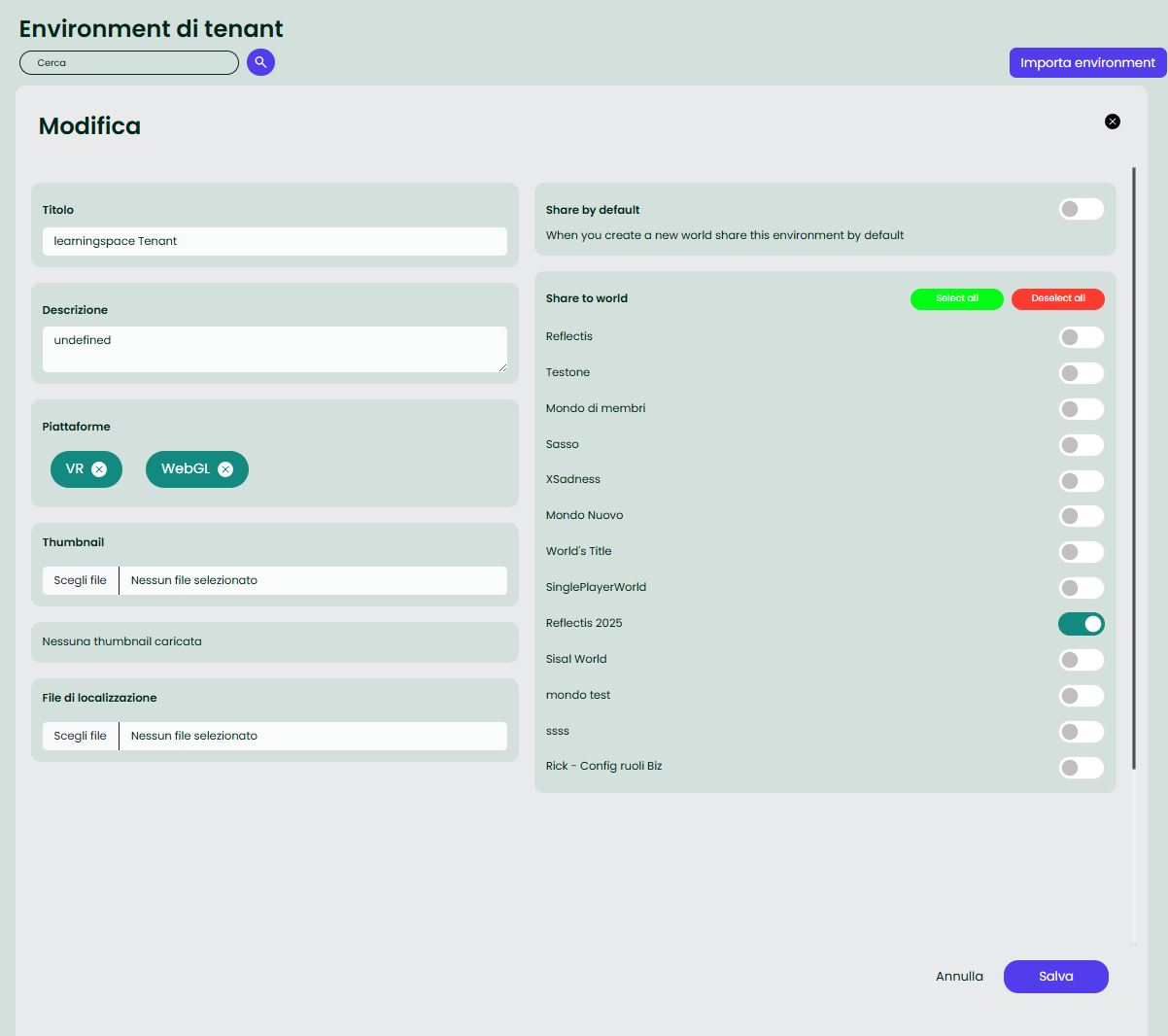
Click Save to apply changes.
Effect in Worlds
In the Worlds where sharing is enabled, the environment appears in Environments (mixed list) and can be selected when creating Core Experiences. It remains read-only for World Owners.
Update, unshare, delete
-
Update
Re-import from the same ZIP (or upload a new ZIP) and click Save. The update propagates to all Worlds where the environment is shared.
Creators may need to refresh their Back-Office page to see the change. -
Unshare
Turn the toggle off for a World. The environment will no longer be available for new experiences in that World.Experiences already created from that environment remain available.
-
Delete (Tenant)
Permanently deletes the tenant environment and removes it from all Worlds.
Any Core Experiences created from this environment will no longer be available (they disappear from Catalog/Play and cannot be launched).
Review the impact on existing content before proceeding.
Permissions
| Action | Tenant Manager | World Owner | Member |
|---|---|---|---|
| Create/Edit/Delete Tenant Environment | ✅ | ❌ | ❌ |
| Share with Worlds | ✅ | ❌ | ❌ |
| Use to create Core Experiences (in a World) | ✅ | ✅ | ❌ |
Best practices
- Keep consistent naming (prefix/suffix for VR/WebGL variants).
- Always provide a clear Thumbnail so creators can recognise the scene quickly.
- Apply Content Tags to improve search and recommendations.
- If the environment is common across many Worlds, enable Share by default.
Troubleshooting
- ZIP not listed during import → check Azure Storage path and permissions.
- Environment marked “Incomplete” → add a Thumbnail and save.
- World Owner can’t edit the item → expected: Tenant Environments are read-only at world level.
- Experiences based on an unshared environment → remain usable; you just can’t create new ones from that environment in the affected World.