Info
In the Event Management section, users can create and configure events to be hosted within the platform. Events can be customized with various details, including time, category, environment, and specific settings for multiplayer and default options. Follow the steps below to create an event and save it as a draft.
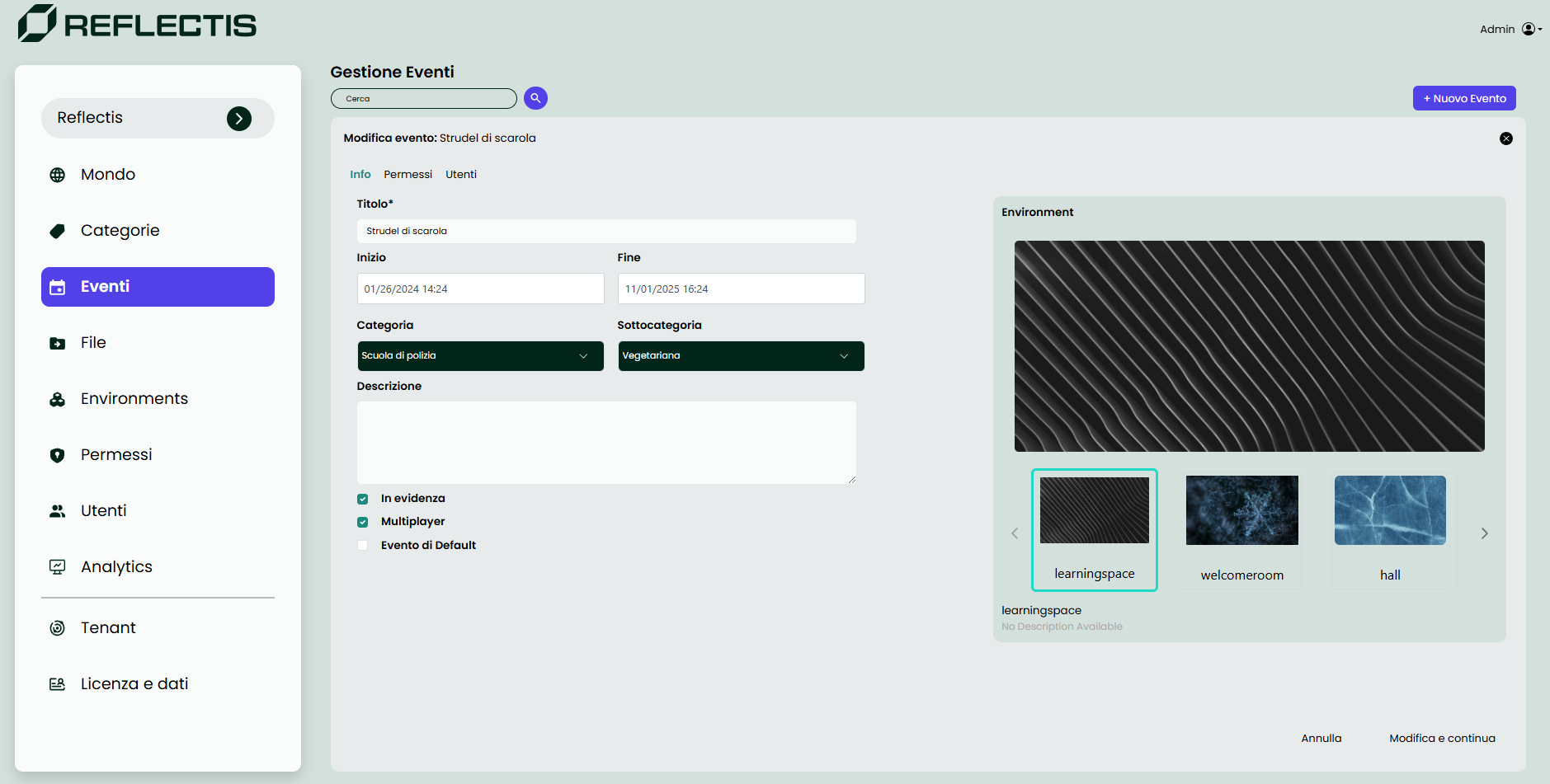
Required Information
To create an event, the following information is required:
-
Title
The name of the event. (Required) -
Start and End Times
Specify the date and time when the event begins and ends. (Required) -
Category and Subcategory
Select appropriate options to classify the event. (Required) -
Description
Provide a brief description of the event’s purpose or content. -
Environment
Choose the 3D environment where the event will take place. (Required) -
Event Options
- Highlighted: Flag the event to feature it prominently. If flagged, the event will appear in the "Highlighted" section on the client’s dashboard (WebGL or VR app).
- Multiplayer: Indicate if the event supports multiplayer interactions.
- Default Event: Set this event as the default entry point for the world. If flagged, it will be the first event users enter when they access the app.
Saving the Event
After entering all the required information, click on Create Draft and Continue to save the event in the draft list. This will make the event accessible for further edits or finalization as needed.