Description
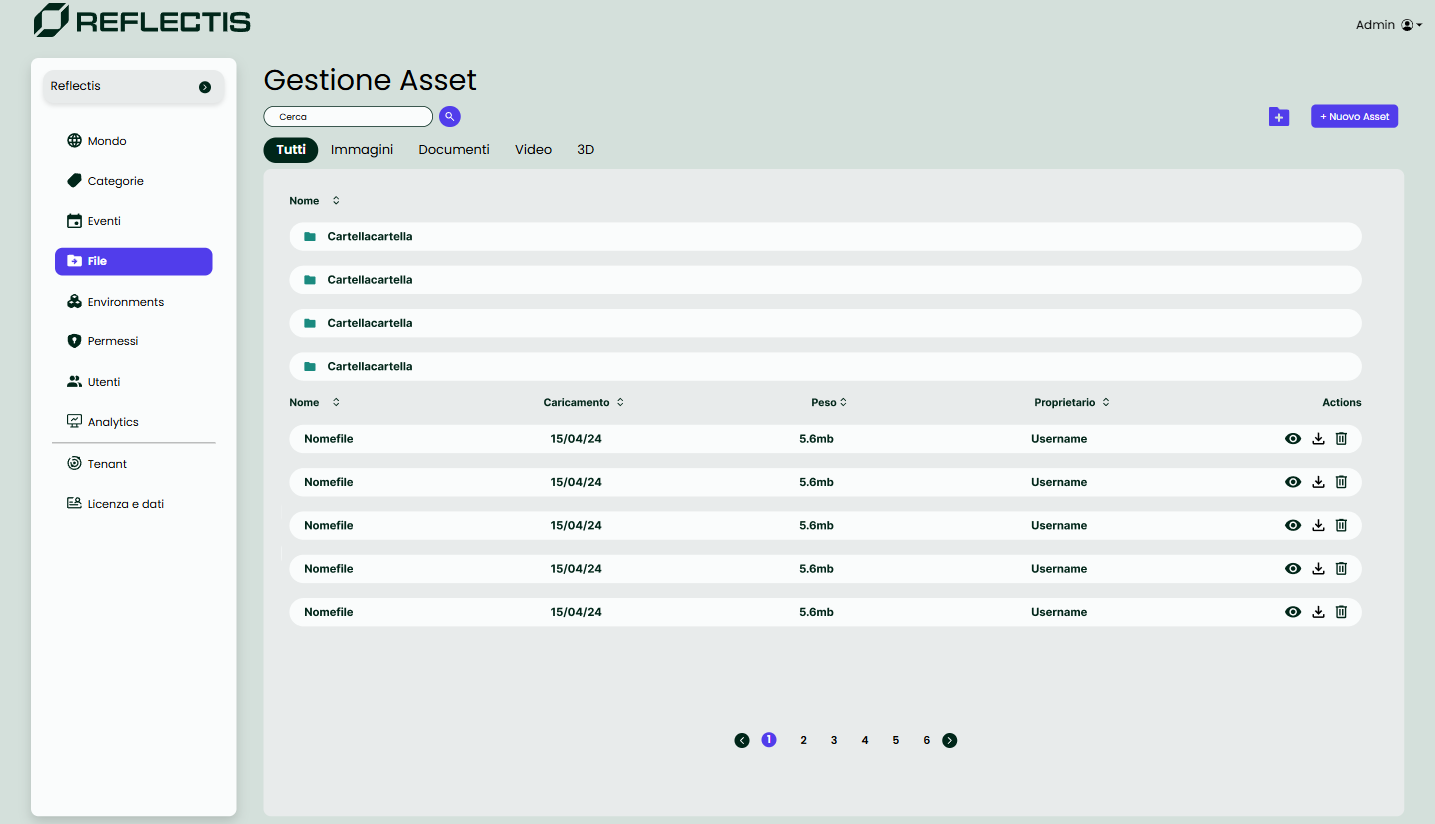
In the Files section, users can manage and organize assets to be shared among all application users. This section provides options for creating folders to group assets, making it easier to keep them organized and accessible.
Creating a Folder
To create a folder, follow these steps:
- Click on the folder icon located at the top-right corner of the page.
- A side panel will appear, where you can enter a name for the new folder.
- Once named, click Save to create the folder. The new folder will then be added to the list and can be used to organize assets.
Note
Empty folders will not persist and are automatically removed if no assets are added to them.
Organizing and Managing Assets
- Organize by Category: Use the tabs (Images, Documents, Video, 3D) at the top of the page to filter and view assets by type.
- Sort and Search: Assets can be sorted by Name, Upload Date, Size, or Owner. The search bar at the top allows users to quickly locate specific assets.
- Actions: Each asset has icons for downloading, viewing details, and deleting. Only users with appropriate permissions can delete assets.
Pagination
At the bottom of the page, pagination controls allow users to navigate between multiple pages of assets easily, especially when the list of assets is long.