Media Player
BigScreen Prefab
Prefab to be used as a destination point for your media if you want to put them on a big screen.
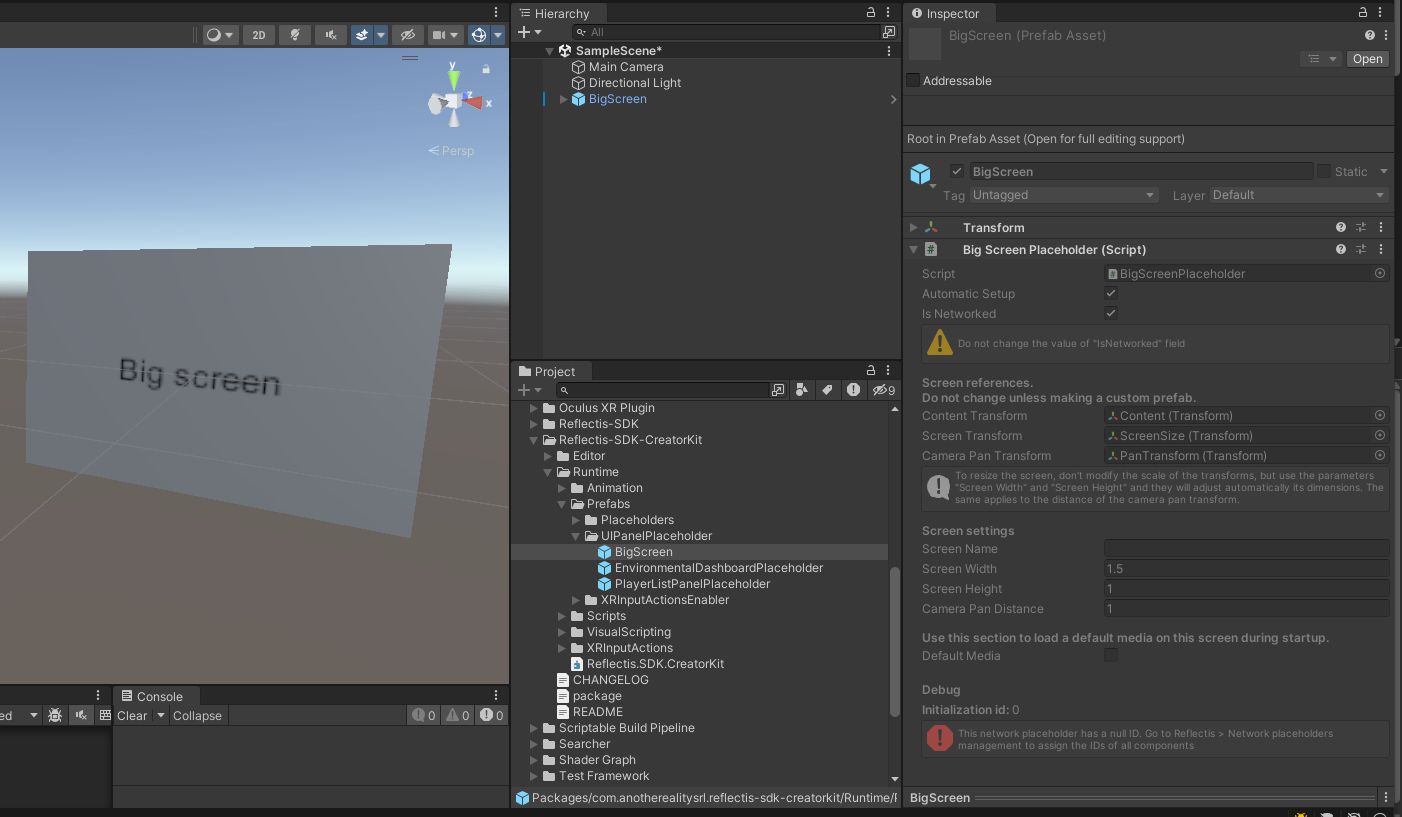
Screen settings
You can customize your BigScreen by editing its info in the BigScreenPlaceholder component.
- Screen Name: The name of the screen. It will appear when a user clicks on the "Send to Big Screen" button on its media player, so he/she can select which
BigScreento target. Make it human-readable! - Screen Width: The X scale of the monitor. Use this value instead of changing the scale of the
BigScreen! - Screen Height: The Y scale of the monitor. Use this value instead of changing the scale of the
BigScreen! - Camera Pan Distance: The distance of the camera from the monitor in "pan" phase.
Be sure to follow these tips!
- Don't change the scale of the Transform, use Screen Width and Screen Height instead. Be sure that the scale of the
BigScreenis (1, 1, 1)! - Don't remove the Is Networked flag!
Default Media
You can use the BigScreen to place a predefined element inside your environment!
To do this, flag the Default Media checkbox.
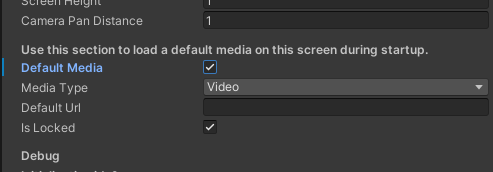
You can manage different kinds of media, by selecting the Media Type you desire:
- None
- Video (default)
- Documents (PDF only!)
- Images
Don't choose Asset 3D from the list! It won't work!
Once the Media Type is chosen, then you can put the Default Url. The URL should be complete and publicly accessed.
To have a better experience with videos, they should be hosted by a server that is set up to allow chunk downloads, so the videos can be seeked at runtime.
You can also choose to lock the BigScreen by selecting the Is Locked checkbox.
By doing this, you prevent other media to be sent on it and replace the default content.
Locked Big Screens won't appear in the list of available Big Screens when you try to send a media to one of them.