Permissions
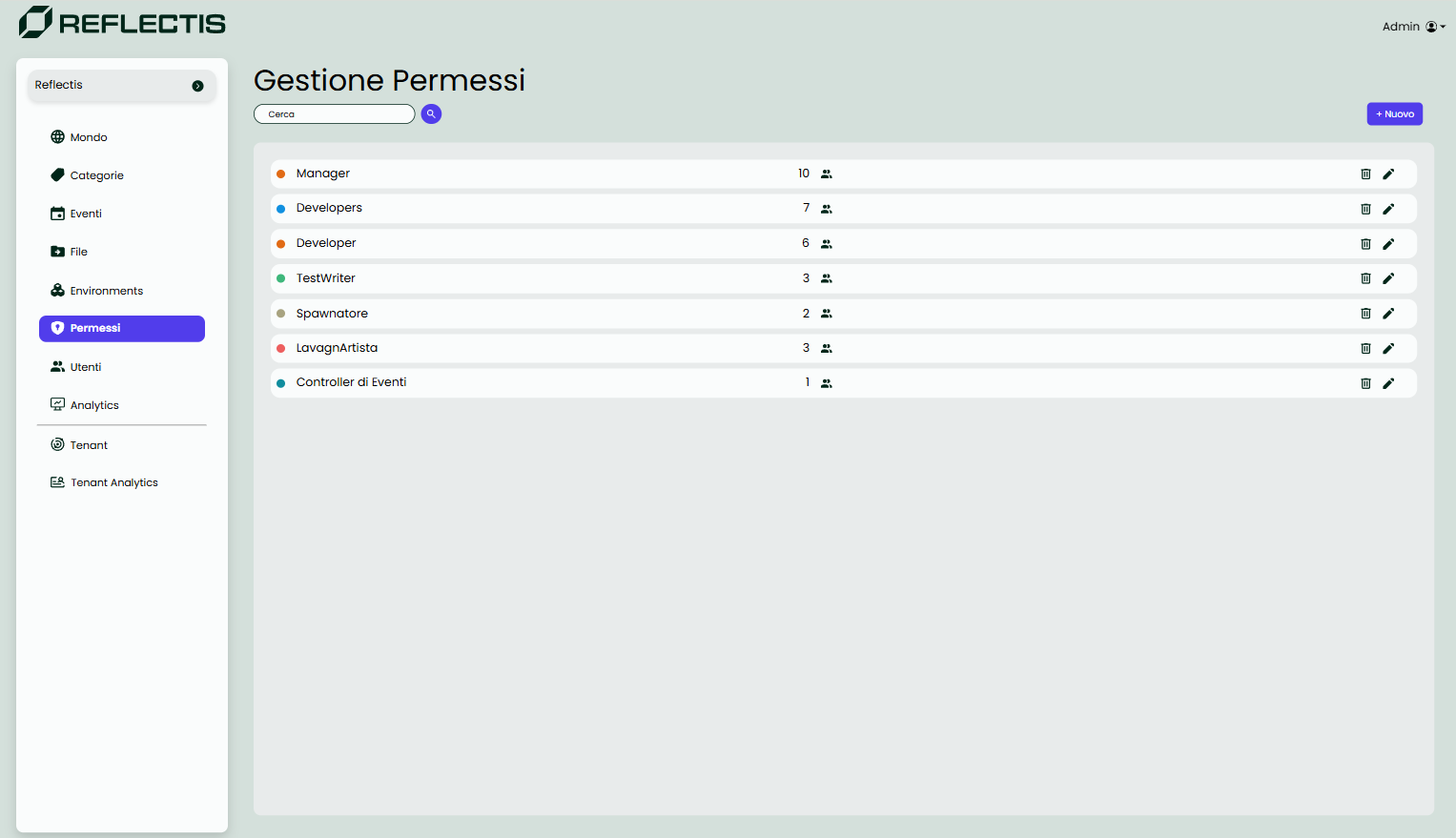
The Permissions section allows for the management of user roles and their associated permissions within the application. Each role can be customized with specific capabilities, controlling what users assigned to that role can or cannot do.
Creating a New Role
To create a new role:
- Click the + Nuovo button at the top right.
- A new panel will open where the role’s details, including name, color, and visibility, can be defined.
Viewing Assigned Users
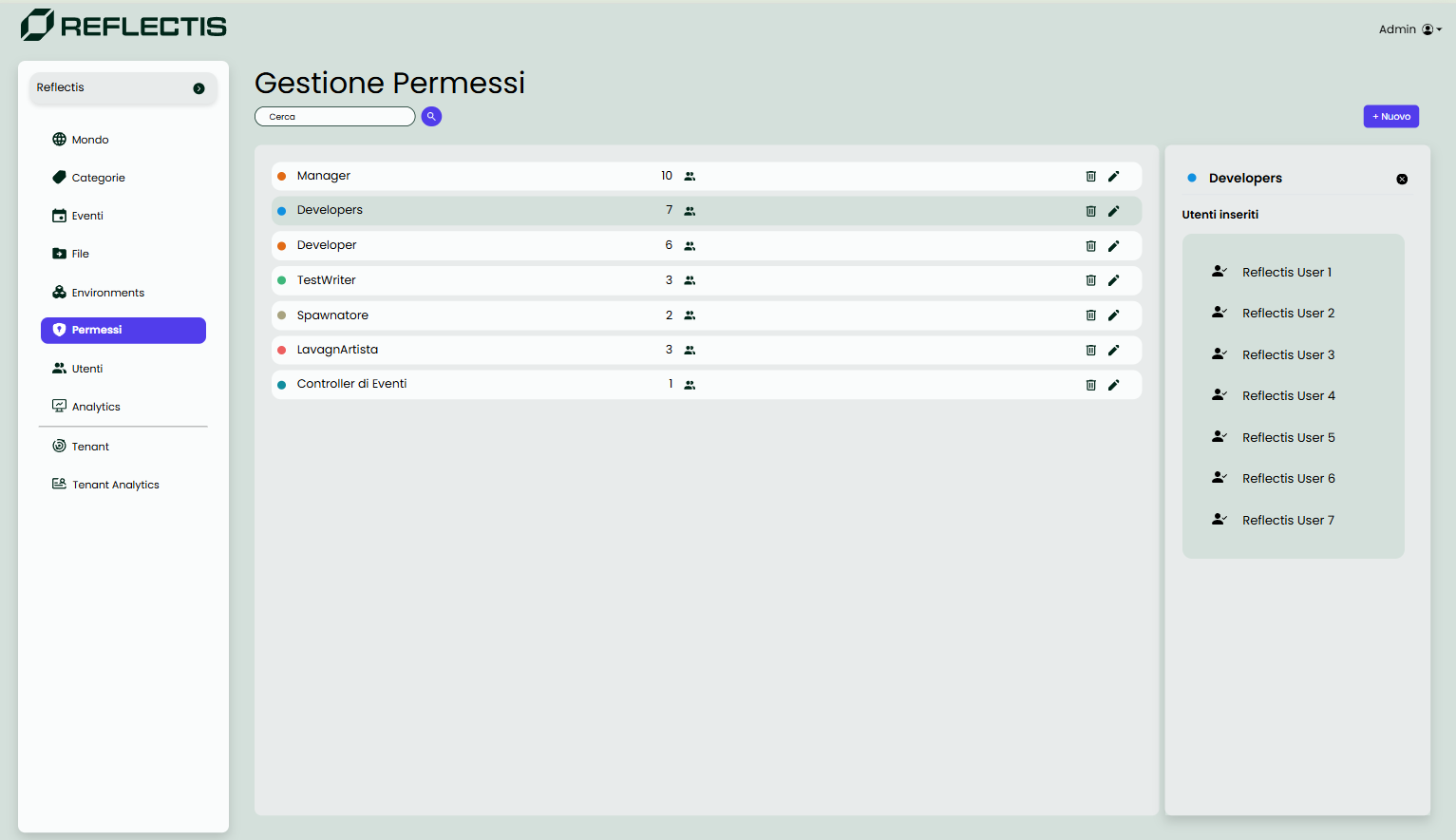
To view users assigned to a role, select the role from the list. The panel on the right will display the Utenti inseriti section, listing all users currently assigned to the selected role.
Editing a Role
To edit an existing role:
-
Click the edit icon next to the role to be modified.
-
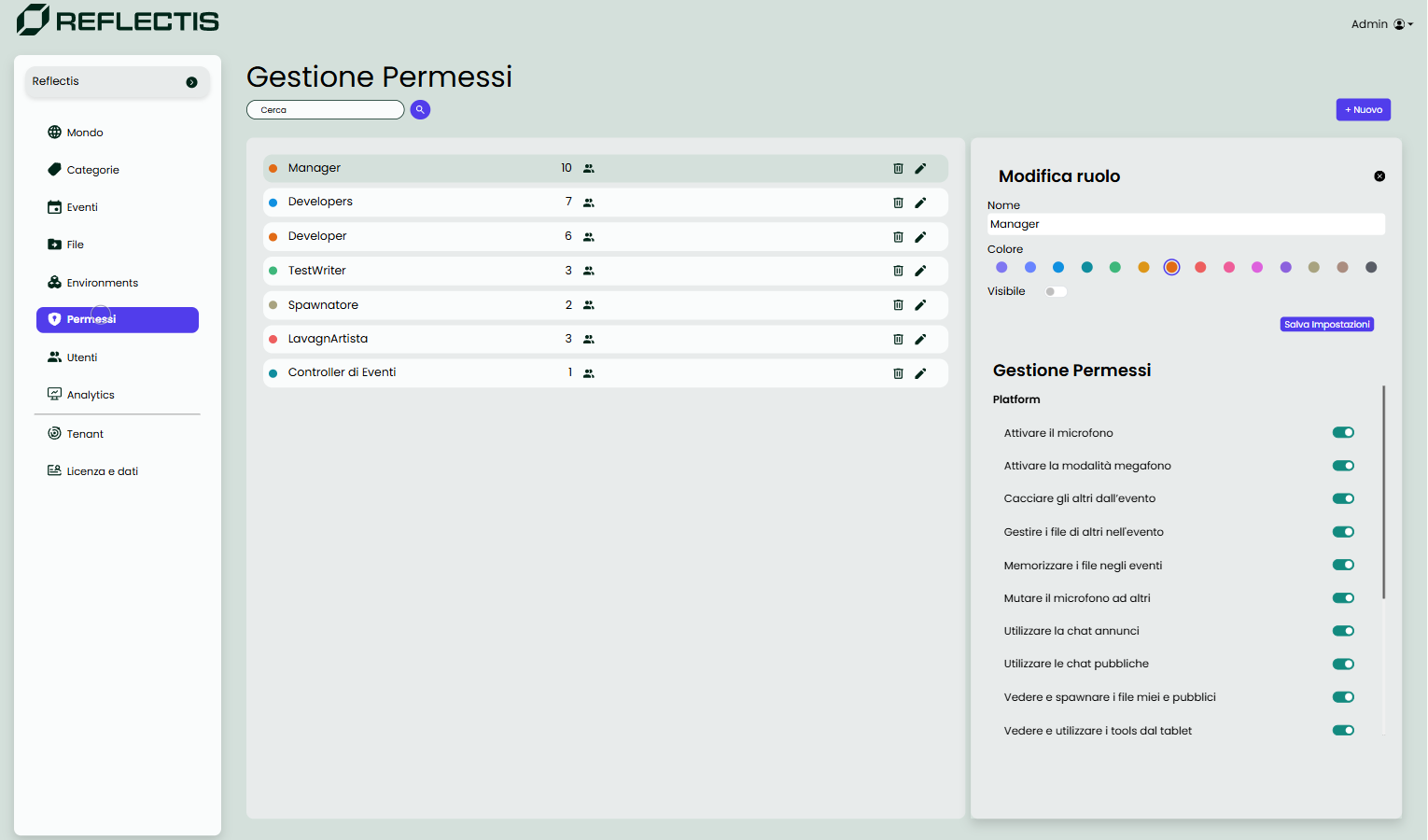
The Modifica ruolo panel will open on the right side, where the following attributes can be configured:
- Name: Edit the name of the role.
- Color: Choose a color to represent the role.
- Visibility: Toggle visibility on or off to determine if the role should be visible in the app.
-
The Gestione Permessi section allows for customization of specific permissions for the role. Toggle each permission on or off to define the actions available to users with this role.
Available Permissions
- Activate Microphone: Allows users to enable their microphone.
- Activate Megaphone Mode: Grants louder broadcast capability.
- Eject Others from Event: Permits users to remove others from the event.
- Manage Files of Others: Enables managing files belonging to other users within the event.
- Store Files in Events: Allows saving assets and their positions in the event.
- Mute Microphone for Others: Grants the ability to mute others' microphones.
- Use Announcement Chat: Allows access to announcement-specific chat.
- Use Public Chat: Permits use of public chat channels.
- View and Spawn My and Public Files: Enables visibility and spawning of personal and public files.
- View and Use Tools from Tablet: Allows access to tools via the tablet interface.
Deleting a Role
To delete a role:
- Click the delete icon next to the role.
- Confirm the deletion. Deleting a role will remove it from all users assigned to it.