Unity scene setup
General tips
- Make an extensive use of Static Batching for duplicated models/prefabs and avoid having objects with too many split parts in the scene. Instead, try to pack all the parts with a camera framing logic (e.g., in case of a fence model made by sticks, group the sticks by side)
- Do NOT use external plugins which use scripts at runtime (e.g., plugins/script that make animations or create procedural assets from code)
- Do NOT use URP decal system
Lighting
Below some hints to setup the scene properly in order to achieve good performances on the target devices:
-
If possible, avoid real time lighting and if needed use just one directional real-time light
-
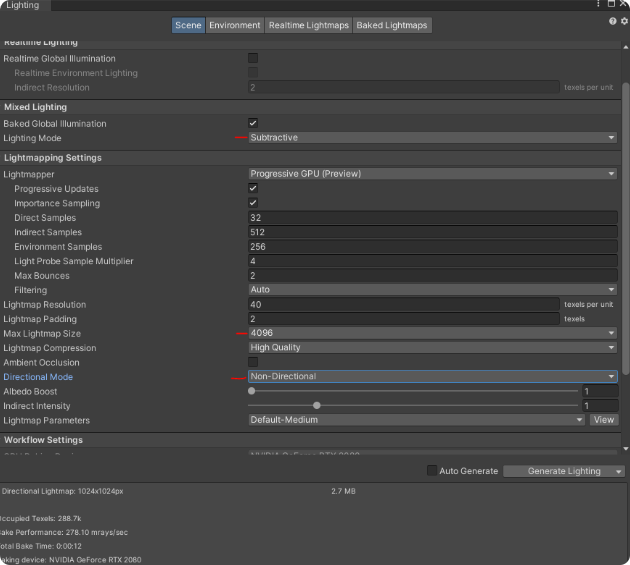
In the light baking process use the “Subtractive” and “Non-directional” modes, pack the lightmaps in 4K mode and do not exceed two 4096x4096 images.
-
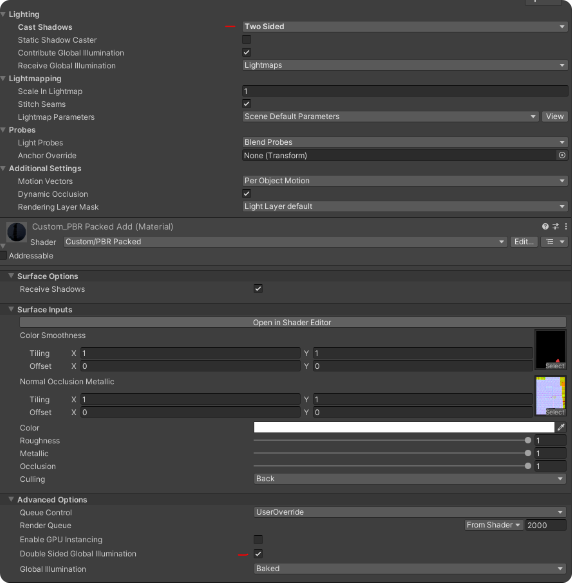
Before the light baking process, check the flag “Double sided global illumination” and set the “Cast Shadows” dropdown menu to “Two Sided”.
-
Use Light Probes and for Reflection Probes use images up to 1024x1024.
NoteRemember! Objects that have to be included in the baked lightmap, have to be marked as “Static”.
Post process
- In the post processing volume use just “Color correction” and “Color curve”. Avoid other post processing effects since they could impact performance.
- Do NOT work in HDR color mode.