Research Archive (Vector Stores)
The Research Archive is a knowledge base system that uses vector stores to enable AI Chatbots to provide context-aware, accurate responses based on your organization's documents.
Vector stores convert your documents into searchable embeddings, allowing chatbots to quickly retrieve relevant information when grounding.filesearch is enabled.
Viewing Your Archives
Navigate to Backoffice > Reflectis AI > Research Archives to see all available archives.
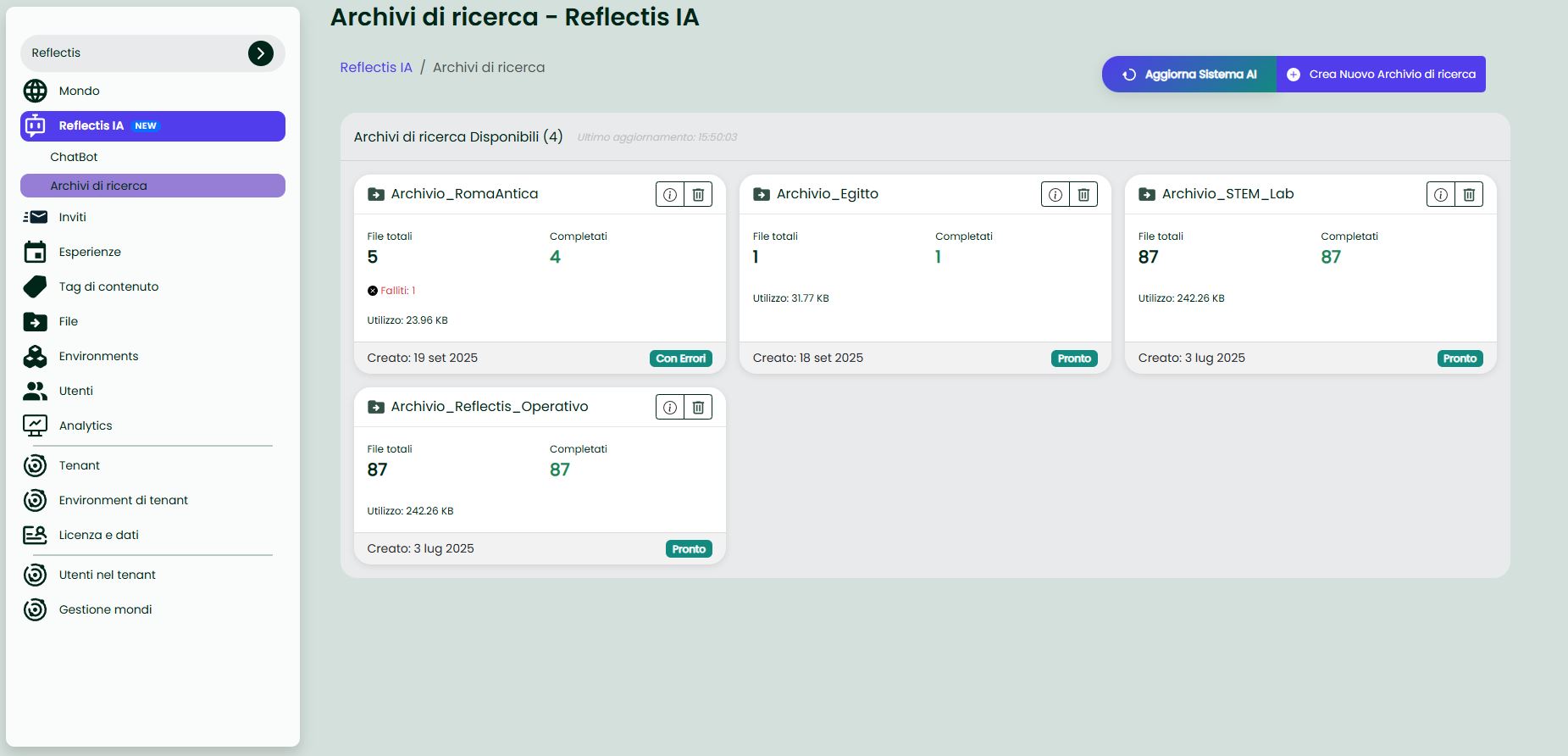
Each archive card displays:
- Archive name
- Total files – total number of files uploaded
- Completed – successfully processed files (green number)
- Usage – storage size in KB
- Created – creation date
- Status badge:
- Ready – all files processed successfully
- With Errors – some files failed processing
Creating a New Archive
- Click Create New Research Archive (top right)
- Provide a name for your archive
- (Optional) Upload initial files or add them later
- Click Create
Archive Detail View
Click any archive card to open its detail page.
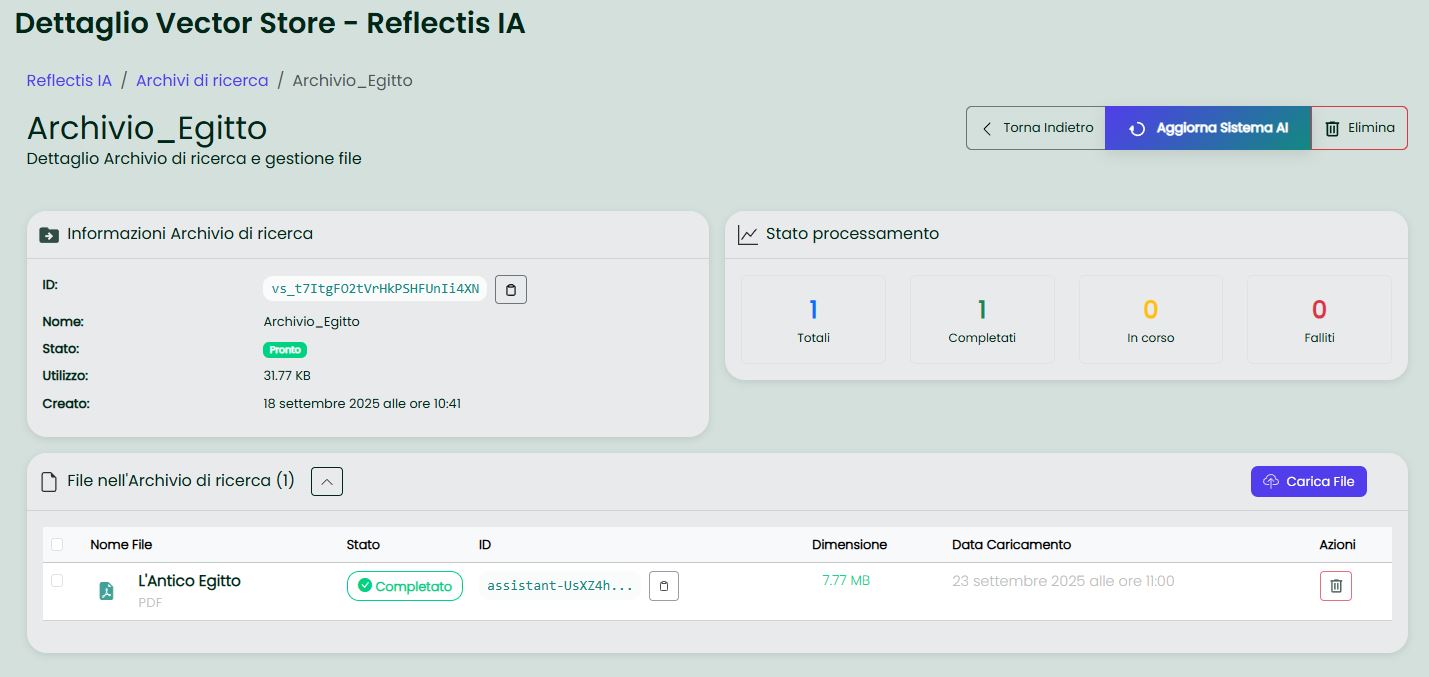
Information Panel
Displays:
- ID – unique vector store identifier (copyable)
- Name – archive name
- Status – current status (Ready / With Errors)
- Usage – total storage used
- Created – creation timestamp
Processing Status
A real-time overview of file processing:
- Total (blue) – total files
- Completed (green) – successfully vectorized
- In progress (yellow) – currently processing
- Failed (red) – failed uploads/processing
File Management
The table shows all uploaded files with:
- File Name – file name and format icon
- Status – Completed (ready) or error indicator
- ID – file-specific identifier
- Size – file size
- Upload Date – upload timestamp
- Actions – delete button (trash icon)
Uploading Files
- Open the archive detail page
- Click Upload File (bottom right)
- Select one or more files from your computer
- Wait for processing:
- Files appear immediately in the table with status In progress
- Once vectorization completes, status changes to Completed
- Failed files show an error indicator
Supported File Types
- PDF documents
- Microsoft Word (.docx)
- Plain text (.txt)
- Markdown (.md)
- Other formats may be supported depending on configuration
Managing Archives
Updating the AI System
After uploading or deleting files, click Update AI System to synchronize changes with active chatbots.
Deleting Files
- Click the trash icon in the file row to remove a specific file
- The file is removed from the vector store immediately
Deleting an Archive
- Click Delete (top right) to delete the entire archive
- ⚠️ This action removes all files and cannot be undone
- Any chatbots using this archive will lose access to its content
Linking Archives to Chatbots
Once your archive status is Ready:
- Go to Chatbot configuration
- Enable grounding.filesearch (or "Enable Research Archive")
- Select this archive from the dropdown
- Save
The chatbot will now query this archive when answering user questions.
Best Practices
- Use readable documents: ensure files contain actual text, not just scanned images. PDFs should be text-based or OCR-processed. Avoid corrupted or image-only files that cannot be parsed.
- Organize by domain: create separate archives for different topics (e.g., HR Policies, Product Manuals, Training Materials)
- Monitor processing status: check that files reach Completed before linking to chatbots
- Handle errors: if files show Failed, check format/size and re-upload
- Use clear file names: helps you identify content later
- Keep archives updated: remove outdated documents and upload new versions
- Test with chatbots: verify that answers reflect your documents accurately
Troubleshooting
| Issue | Solution |
|---|---|
| File stuck in In progress | Wait a few minutes; large files take longer. If it persists, try re-uploading. |
| File marked Failed | Check file format and size. Try converting to PDF or splitting large documents. |
| Chatbot not using archive content | Ensure grounding.filesearch is ON and archive status is Ready. Click Update AI System. |
| Archive shows With Errors | Open detail view, check failed files, fix and re-upload. |