Play Mode
Play Mode is a simplified entry flow for a world: instead of opening the Catalog, the landing page shows a single Play button that starts the world’s Default Experience immediately.
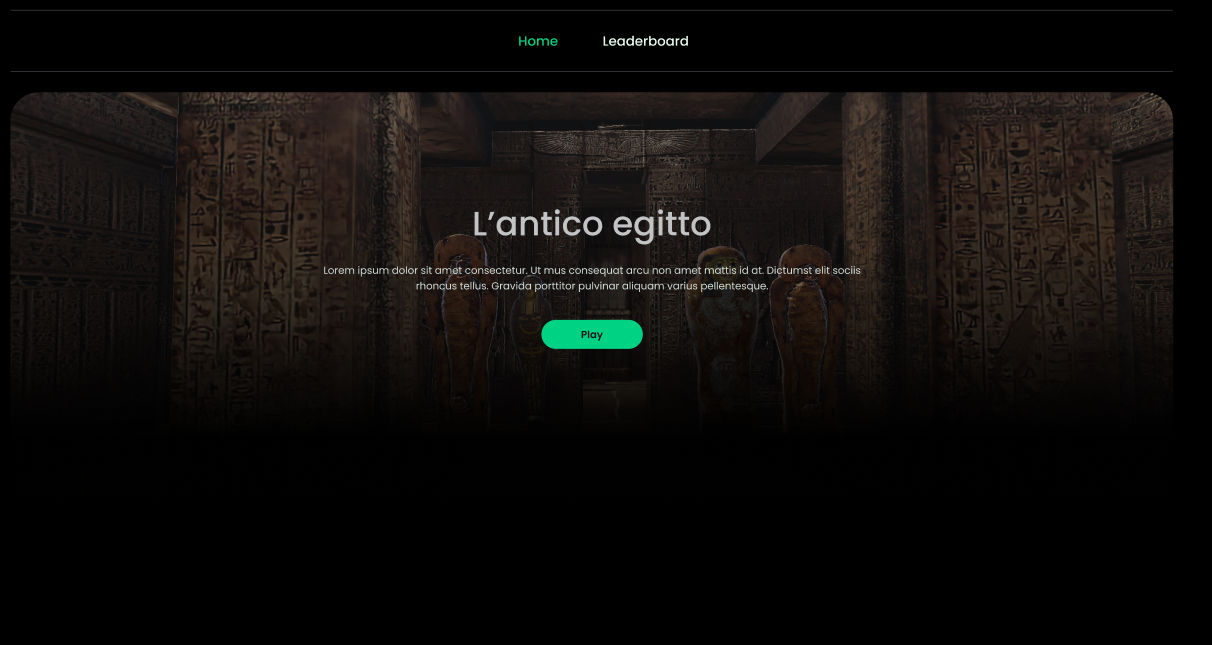
What you’ll see
- A hero card with the world title/cover.
- A large Play button.
- (Optional) a short description of the Default Experience.
In Play Mode you won’t browse the catalog, open “Discover”, or manage sessions from the landing page. Press Play to start.
What happens when you press Play
The behavior depends on how the Default Experience was configured:
- Single-player Core Experience → Reflectis starts a private session just for you.
- Multiplayer Core Experience → you enter the lobby / shared session for that experience.
External Apps cannot be set as the Default Experience; Play Mode always launches a Core Experience.
Platform availability
The Default Experience carries platform tags:
- If it’s WebGL-only and you’re on web, Play works.
- If it’s VR-only and you’re in VR, Play works.
World selection
- If you have one world, you land directly on its Play page.
- If you have multiple worlds, pick the world first; if that world is in Play Mode, you’ll see its Play page.
Troubleshooting
- Play button is disabled / missing
The world may be offline, misconfigured, or missing a Default Experience. Contact your administrator. - “Not available on this platform”
The Default Experience doesn’t support your current client (e.g., VR-only while you’re on web). - I want to browse the catalog instead
This world is in Play Mode. Ask the Tenant Manager to switch the world back to Catalog mode if browsing is required.
Related
- Back Office: setting World Mode and the Default Experience is documented in
Tenant → Create/Edit World and Back Office → Experiences.