How to use the placeholders
Assign a behavior to an object
The steps to attach a behavior to an object are as follows:
-
Drag an existing asset or right click on Unity's hierarchy to create a new GameObject
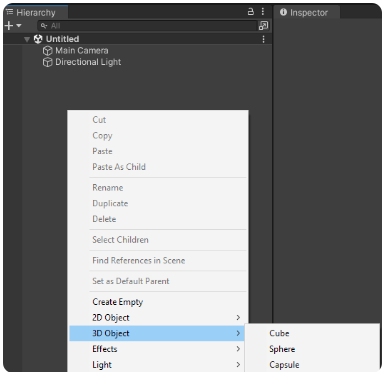
-
Through the object's inspector, add a Box Collider, with the "Is Trigger" checkbox selected to enable interaction with the user
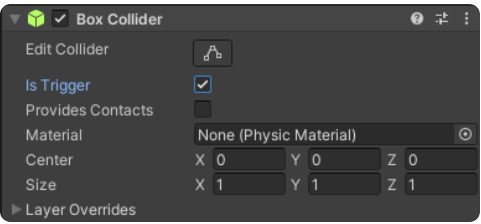
-
Drag and drop the desired script placeholdert from the Reflectis CreatorKit folder. . Alternatively, you can select "Add component" in the inspector and type the name of the script you want to associate
WarningPlease note that it's not recommended to attach two different script placeholders into the same object. Distributing the scripts between parent and children to obtain more behaviors for the same object is allowed, but requires testing and a good handling of the different components.

-
Edit the public parameters of the script according to your preferences, be careful to reference the correct components in the correct slots:

-
Add the others components needed to initiate the desired behavior of the object (empty objects, colliders, audio sources, or others depending on the chosen script). These depends on how the selected script placeholders work.