How to add a component
After installing the addressable system in your project and receiving the remote data correctly, you will find a package called "Reflectis-SDK-CreatorKit" in your project's asset folder.
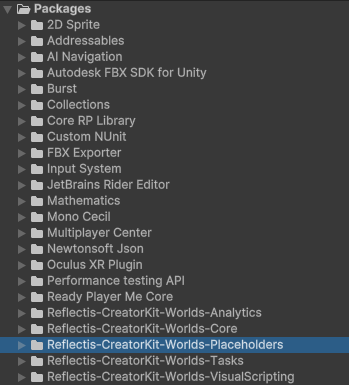
The "Reflectis-SDK-CreatorKit" package is composed of various asset prefabs with built-in logic, ready to be taken and dragged into your scene, for immediate use.
It also includes individual scripts, each representing a different behavior that can be associated with a GameObject of your choice. To ensure the proper functioning of individual scripts, they must be accompanied by the correct components inside the object’s Inspector.
Components are the functional elements of every GameObject. These components contain properties that you can edit to define the behavior of a GameObject.
This is the list of components, both scripts and prefabs, currently in the Reflectis Creator Kit and constantly being updated.
Each of these components has its own particular logic and interaction in the environment:
- Scene Changer - object that allows you to switch from one scene to another
- Teleportation - object that allows teleportation from one point to another, or from one scene to another
- Map Camera - camera that allows you to view the map of the environment from above
- Voice Chat - object that allows you to create a private area where voice chat is active
- Media Player - big screen where to display a multimedia content shared with everyone.
Assign a behavior to an object
The steps to attach a behavior to an object are as follows:
-
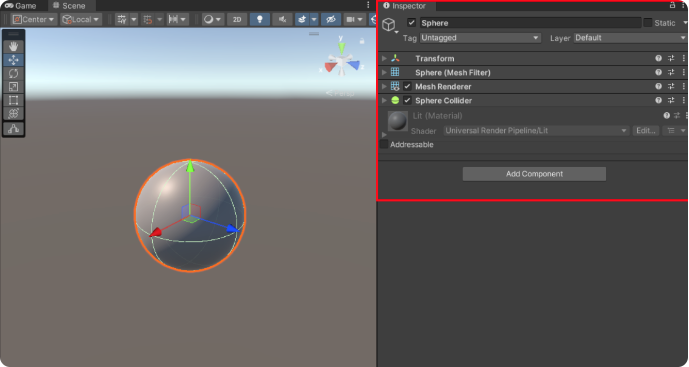
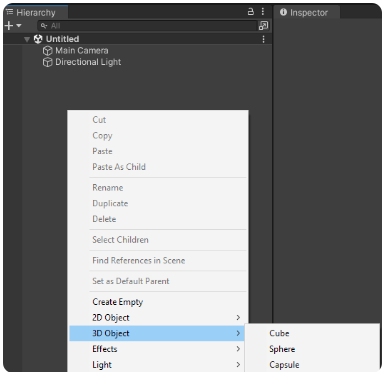
Drag an existing asset or right click on the hierarchy of Unity to create a new GameObject
-
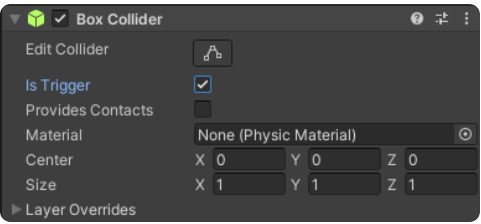
Through the inspector, add a Box Collider to the GameObject you want to interact with, with the "Is Trigger" checkbox selected to enable interaction with the user
-
Drag and drop the desired behavior script from the Reflectis SDK folder: Packages → Reflectis-SDK-CreatorKit → Runtime → Scripts, onto the GameObject's inspector . Alternatively, you can select "Add component" in the inspector and type the name of the script you want to associate
WarningPlease note that it's not possible to insert two SDK scripts into the same object, with the exception of "Toggle" and "Broadcast event", which can coexist in the same object along with another script.
Distributing the scripts between parent and children to obtain more behaviors for the same object is allowed, but requires testing and a good handling of the different components.

-
Edit the public parameters of the script according to your preferences:

-
Add the final components needed to initiate the desired behavior of the object (empty objects, colliders, audio sources, or others depending on the chosen script).