Variables synchronization
To synchronize variables in multiplayer, we need to proceed with these steps in the graph editor:
-
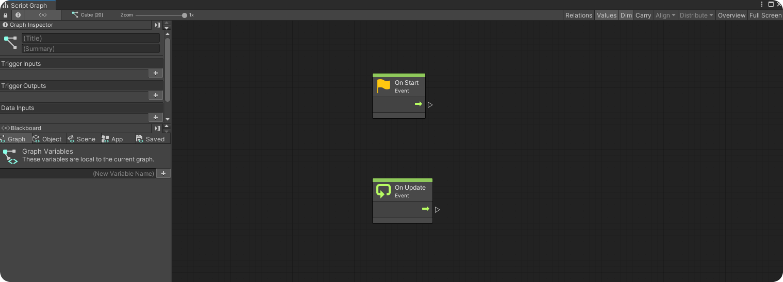
Click "Edit Graph" on the "Script Machine" component to open the Graph editor and start editing the nodes on the graph to obtain the desired behavior
-
When embedded to the object and placed on the scene, the visual scripted behavior will start as "Not Networked"
-
To be able to network the variable of the object to all the users, the Synced Object is needed. Without it the interactions made with the graph editor will be visible only to the client and not the rest of the server.
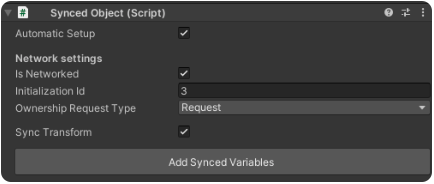
It’s important that the parameters "Automatic Setup" and "Is Networked" are ticked, and a new ID must be assigned each time it’s assigned to a different object (please refer to section Initialization ID).
The "Ownership Request Type" parameter determines what type of request will be made on that object:
- "Request" - where you request ownership of the object
- "Takeover" - where you take ownership regardless, automatically.
Moreover, you have to tick the "Sync Transform" parameter, if it’s necessary for the position, rotation and scale information of the object, to which the script is attached, to be shared with the server and synchronized with the same object, displayed by other users.
How to add variables
The "Add Synced Variables" button is used to open a "Variables" script, where to add the variables to be used for the development of online mechanics. Variables can also be added in the node graph.
Once the script for adding variables has been entered, you need to click on the "+" button and to assign a name, type and value to each one.
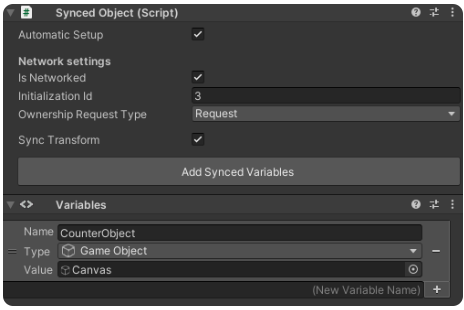
There are 6 types of variables that can be synchronized:
- "Int" is an integer number
- "Float" is a decimal number
- "Bool" is true of false
- "String" is a text
- "Vector3" is a vector X, Y and Z
- "Vector2" is a vector X and Y.
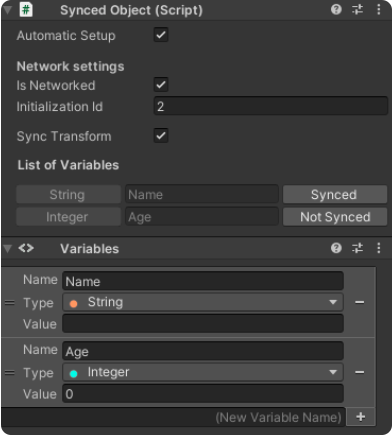
It’s important that after adding the variables, you press on the "Not synced" button next to each individual variable, if you want to synchronize it, so that it’s seen updated in multiplayer.