AI-Powered 3D Model Generation
The true innovation of this release is the integration of an AI-based 3D model generation system, accessible through the Generate 3D button in the Asset Management section. The system offers three flexible generation modes to accommodate different creative workflows.
This feature must be explicitly activated for your world. Contact support to enable AI-powered 3D generation for your environment.
Text-to-3D Generation
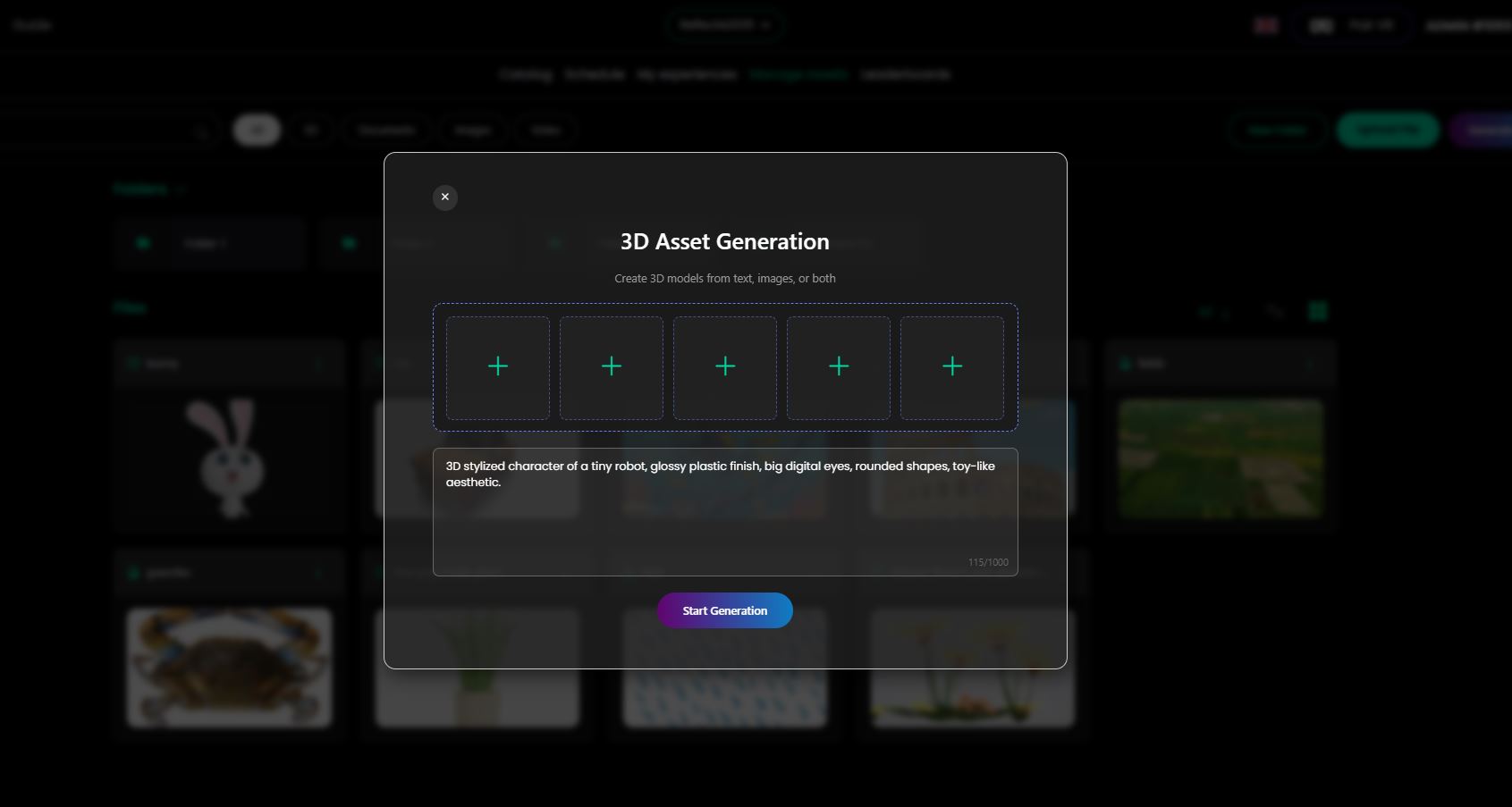
Users can create complex 3D models simply by describing what they want through a text prompt. The interface features a large text area (up to 1000 characters) where you can enter detailed descriptions of the style, characteristics, and aesthetics of the desired model.
How to Use
- Click Generate 3D in the Manage Assets page
- Leave the image upload area empty (no images)
- Enter your description in the text area
- Click Start Generation
Example Prompts
3D stylized character of a tiny robot, glossy plastic finish,
big digital eyes, rounded shapes, toy-like aesthetic.
Medieval fantasy sword with ornate gold handle, blue crystal
embedded in pommel, sharp silver blade with rune engravings.
Cartoon-style coffee mug, bright red color, cheerful smiley face,
chunky handle, slight wobble in proportions for playful look.
When to Use
This mode is ideal when you have a clear vision of what you want to create but no visual reference to start from. The AI will interpret your description and generate a complete 3D model matching your specifications.
Image-to-3D Generation
For users who prefer to work from existing visual references, the system supports pure image-based generation. Simply upload one or more reference images (up to 5), and the AI will analyze and convert them into 3D models, automatically interpreting shapes, textures, and spatial relationships.
How to Use
- Click Generate 3D in the Manage Assets page
- Upload 1-5 reference images by clicking the + buttons
- Leave the text prompt area empty (optional)
- Click Start Generation
Best Results
- Use clear, well-lit images
- Multiple angles help the AI understand the 3D structure
- Consistent lighting across images produces better results
- High-resolution images yield more detailed models
When to Use
This mode is perfect for:
- Converting 2D concept art into 3D assets
- Recreating real-world objects from photographs
- Transforming existing illustrations into virtual 3D props
- Quick prototyping from sketches or drawings
Image + Text Hybrid Generation
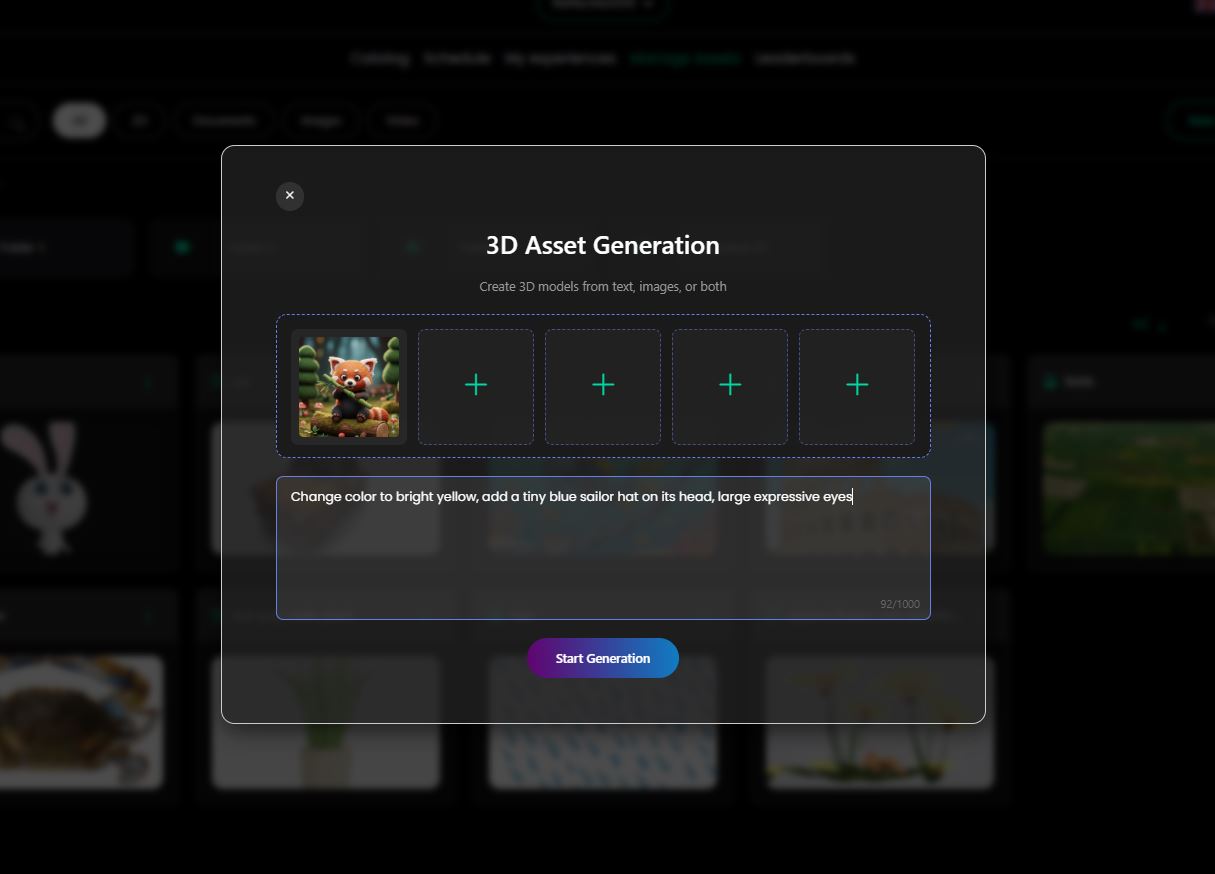
For maximum control and precision, the system supports hybrid generation that combines reference images with textual descriptions. Upload up to 5 reference images to guide the overall structure and appearance, then use text prompts to specify modifications, variations, or additional details.
How to Use
- Click Generate 3D in the Manage Assets page
- Upload 1-5 reference images
- Enter a text description with modifications or additional details
- Click Start Generation
Example Use Case
Reference Image: A photo of a red panda character Text Prompt:
Change color to bright yellow, add a tiny blue sailor hat on its head,
large expressive eyes
Result: The AI generates a 3D model based on the red panda structure but applies all the modifications specified in the text.
When to Use
This mode combines the best of both worlds:
- Visual references provide the foundation and general direction
- Text prompts refine details and specify desired changes
- Perfect for iterative design processes and creating variations
- Ideal for customizing existing designs
- Great for brand adaptations of generic models
Generation Process
After clicking Start Generation, the AI begins processing your request:
-
Upload & Validation – The system validates your inputs (images and/or text prompt) and uploads reference images to temporary storage. Each image can be up to 50MB, with a total limit of 500MB across all uploaded images
-
Reference Preparation – Depending on your input mode:
- Images only: Your uploaded images are prepared for 3D generation
- Text prompt (with or without images): The AI first generates optimized reference images from your description, incorporating any uploaded reference images to guide the style and structure
-
3D Analysis – The AI analyzes the reference images to understand the object's 3D structure, geometry, and spatial relationships
-
Mesh Construction – The system generates the 3D geometry and topology, leveraging multiple views to capture all angles and hidden surfaces
-
Texturing – Applies colors, materials, and surface details based on the reference images
-
Optimization – Prepares the model for real-time use with mesh simplification and texture compression
-
Delivery – The completed GLB model appears in the Generated 3D folder with a thumbnail preview
Generation typically takes 2-5 minutes depending on complexity. You can continue working while the model is being generated.
Generated Assets Storage
All AI-generated 3D models are automatically saved in the Generated 3D folder within Manage Assets. From there, you can:
- Preview the model with the 3D viewer
- Download the model (GLB format)
- Rename the asset
- Move it to other folders
- Delete unsuccessful generations
- Use it directly in your experiences
Tips for Best Results
For Text Prompts
- Be specific about style, materials, and aesthetics
- Include shape descriptors (rounded, angular, smooth, rough)
- Mention size relationships (tiny, large, massive, miniature)
- Specify color and finish (glossy, matte, metallic)
- Reference art styles (cartoon, realistic, stylized, low-poly)
For Image References
- Provide multiple angles when possible
- Use consistent lighting across reference images
- Ensure high image quality (avoid blurry or pixelated images)
- Include detail shots for complex elements
- Remove busy backgrounds if possible
For Hybrid Mode
- Use images for overall structure and proportions
- Use text for specific modifications and variations
- Be precise about what should change vs. what should remain
- Test iteratively – generate, review, refine prompt
Limitations and Considerations
- Character limit: Text prompts support up to 1000 characters
- Image limit: Maximum 5 reference images per generation
- Supported formats: JPG, PNG for input images
- Output format: GLB (optimized for real-time rendering)
- Complex scenes: The system works best with single objects; complex multi-object scenes may require separate generations
Use Cases
Product Prototyping
Quickly generate 3D prototypes of products for virtual showrooms or design reviews.
Educational Content
Create custom 3D models for educational experiences without 3D modeling expertise.
Game Assets
Generate props, characters, and environmental objects for virtual worlds.
Marketing Materials
Produce 3D visualizations of concepts for presentations and campaigns.
Event Customization
Create branded 3D objects for virtual events and conferences.